10Where alerts and reports go
The board's alerts and the reports leave the gateway the ways you set up once, for the whole gateway, in Settings › Notifications & Alerts: e-mail, WhatsApp, and copies to an FTP / SFTP server or Google Drive. Set them up and test each one before turning the board's alerts on.
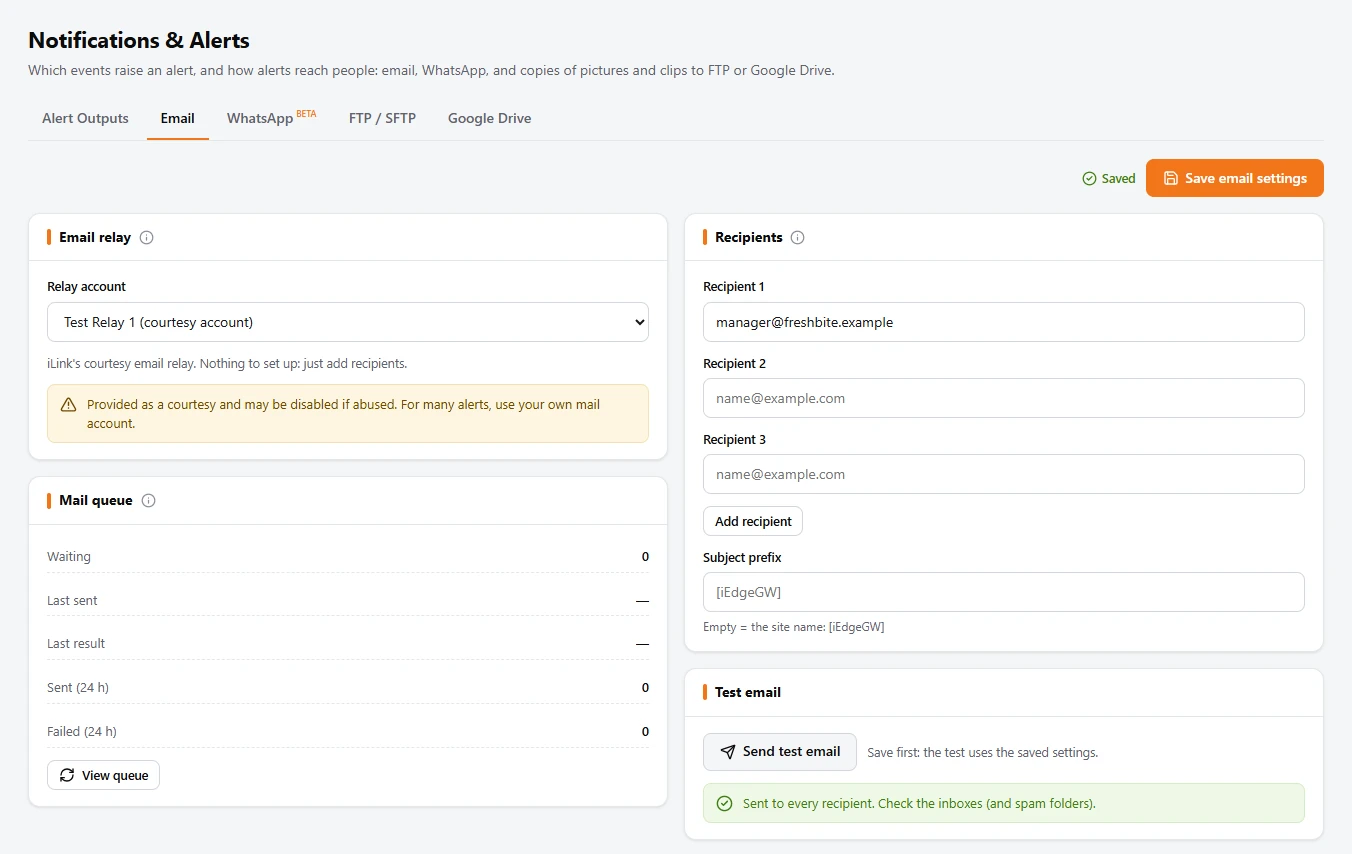
- Open the Email tab. Under Relay account, the easiest is Test Relay 1 (courtesy account): iLink's own mail relay, nothing to set up. For many alerts or your own sender address, choose your mail provider (Gmail, Yahoo, Outlook.com, Microsoft 365, GoDaddy) and enter its account and password, or Custom SMTP for any other mail server.
- Type the managers' addresses under Recipients (Add recipient for more).
- Click Save email settings, then Send test email. Sent to every recipient means the mail server took it: check the inbox, and the spam folder the first time.
Mail queue shows what is waiting, sent and failed in the last 24 hours; View queue lists each message with its result.
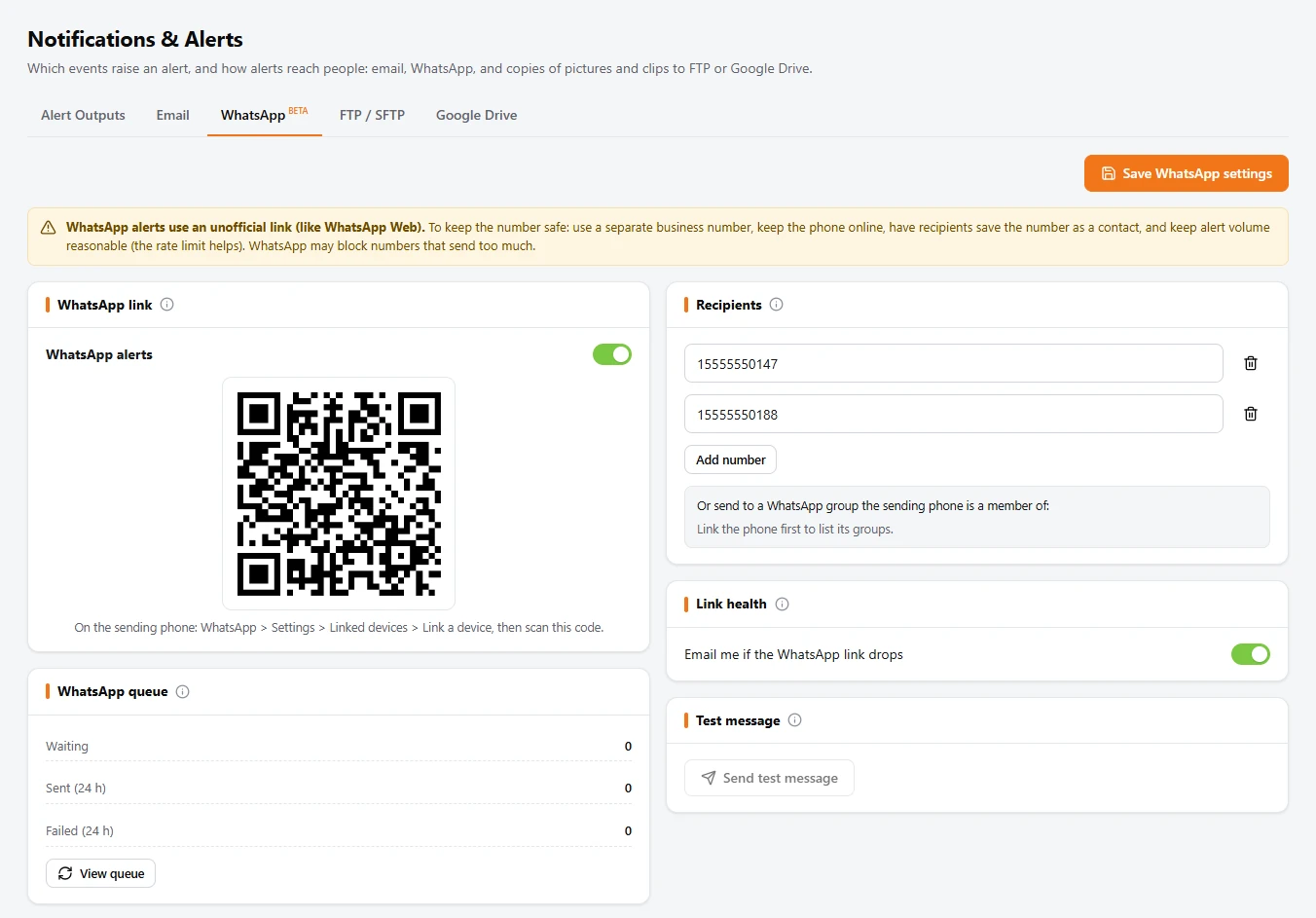
- Choose the phone that will send the alerts: a separate business number is best, kept charged and online (the page explains why).
- On the WhatsApp tab, turn on WhatsApp alerts. A QR code appears in a few seconds.
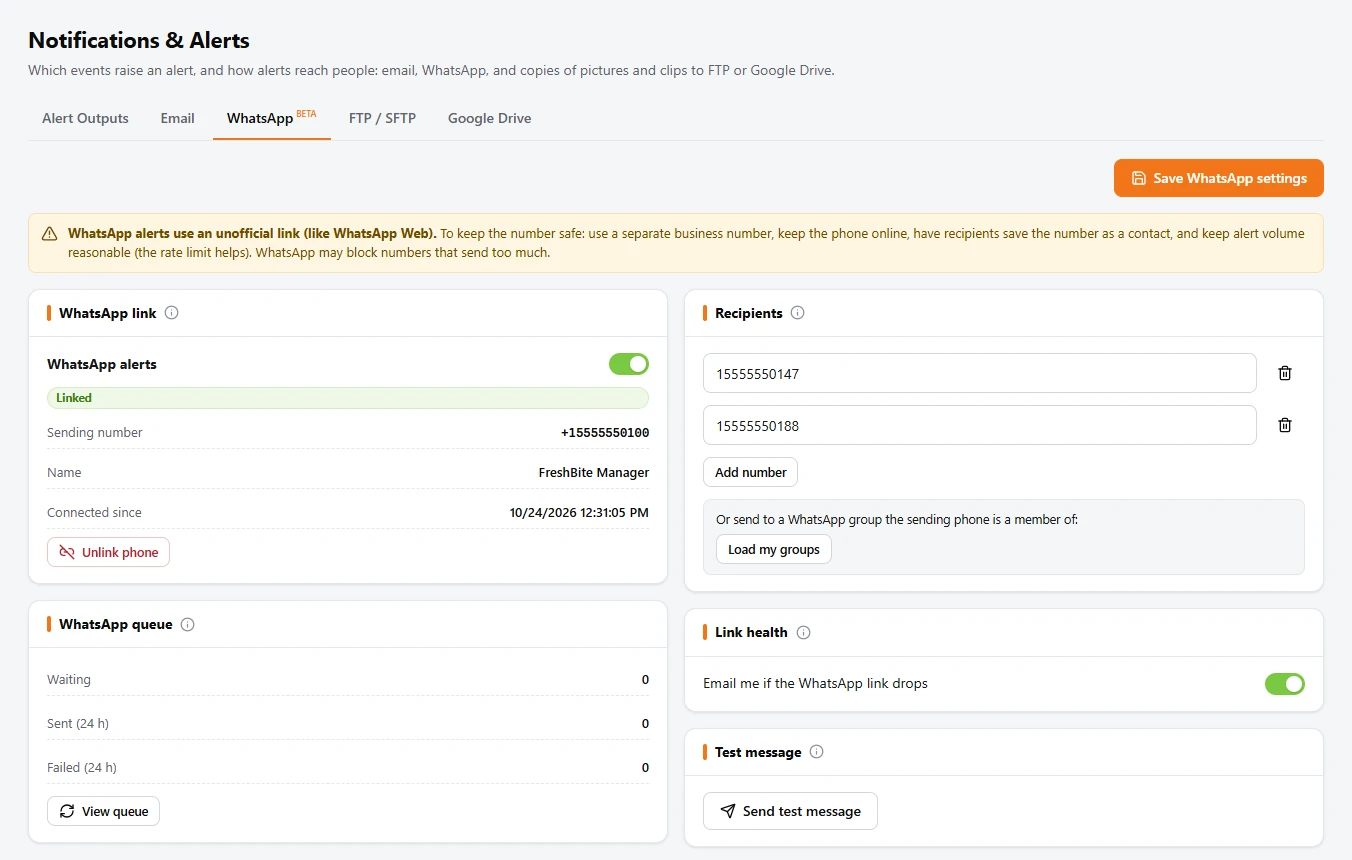
- On that phone: WhatsApp › Settings › Linked devices › Link a device, and scan the code. The card then says Linked, with the sending number. The link survives restarts and updates.
- Under Recipients, add each number in international format, country code first (for the US: 1, the area code, the number). Once linked, Load my groups lets you send to a WhatsApp group instead.
- Click Save WhatsApp settings, then Send test message.
Keep Email me if the WhatsApp link drops on: if the phone is unlinked or offline, the e-mail recipients hear about it.
Copies to an FTP / SFTP server or Google Drive
Each alert's picture, its text and its video clip, and each report's PDF, can also be copied to a server or a Google Drive folder, kept as long as you like. Files go in a folder per day, named by date, time, camera and event; reports go in a folder named reports.
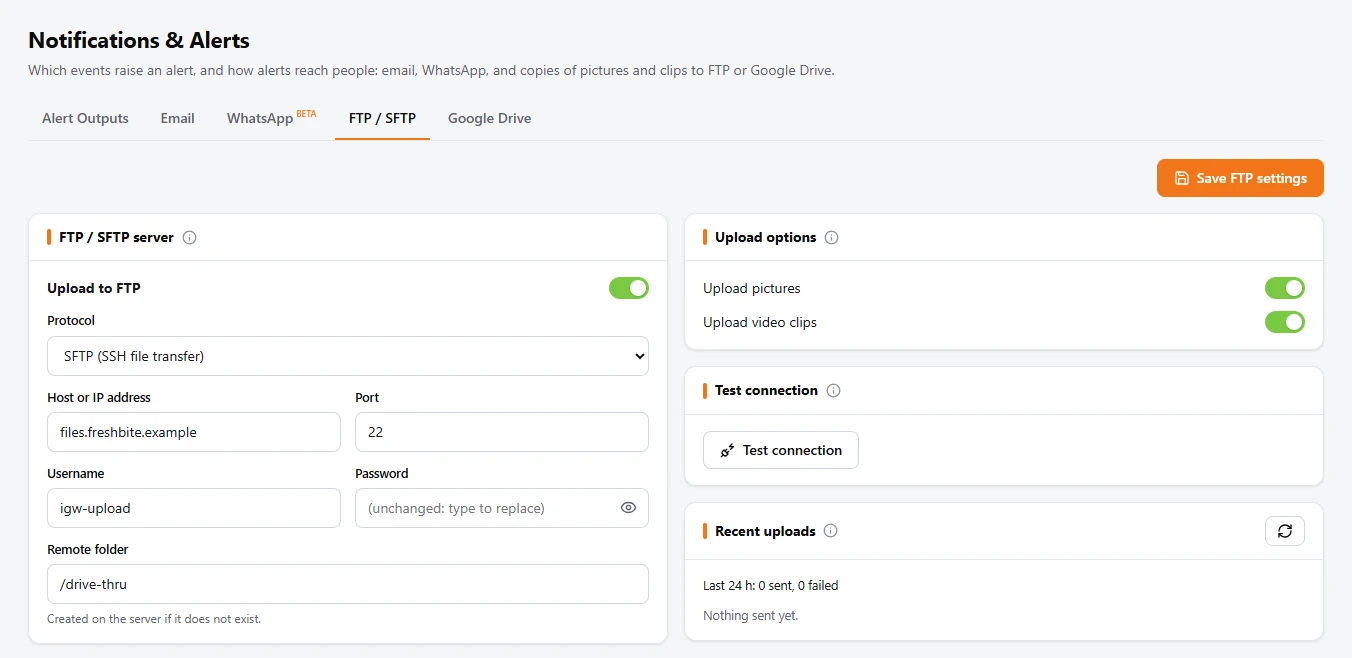
FTP / SFTP: turn on Upload to FTP; choose the protocol (SFTP is the safest), the server, its port, the account and the folder (made if missing). Click Save FTP settings, then Test connection: it writes a test file and removes it.
Google Drive needs Google Workspace: a service account key, and a folder in a Shared Drive with that service account added as Content manager (the page's Setup box has the four steps; a folder in someone's own My Drive does not take uploads). Upload the key, paste the folder's address, turn it on, save, then Test connection.
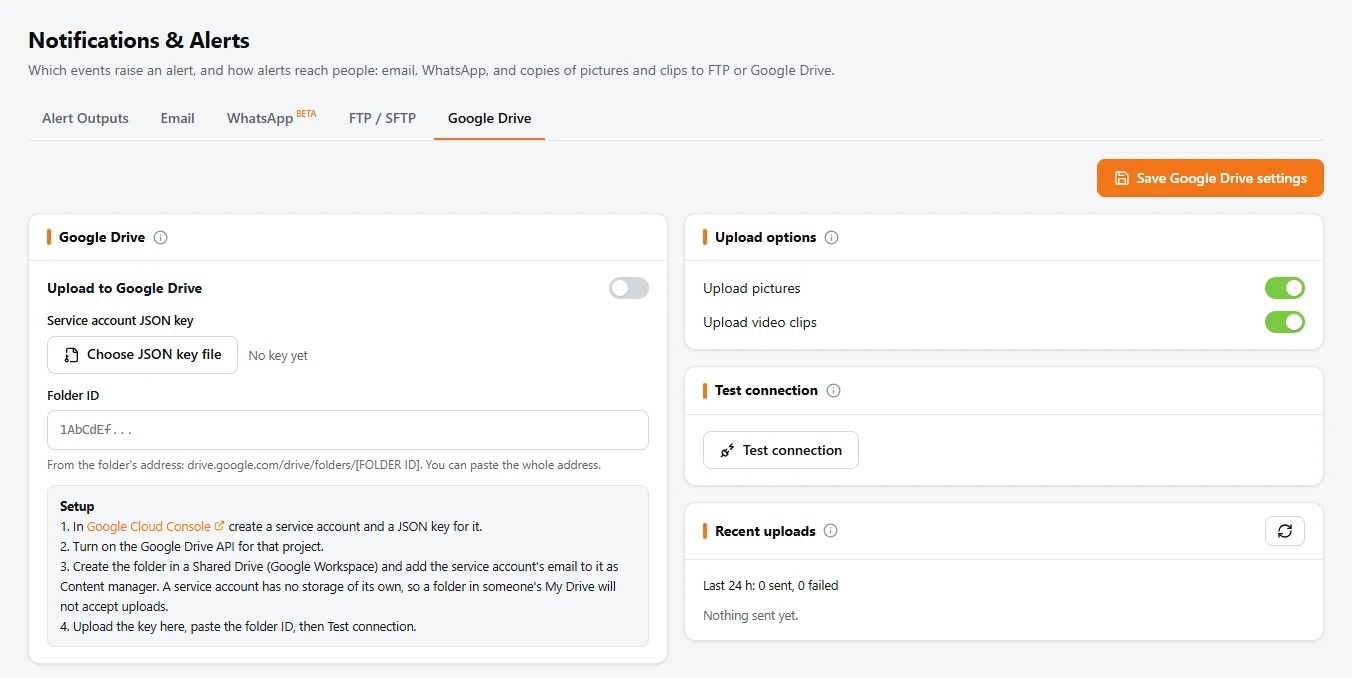
Recent uploads on each tab lists every upload of the last 24 hours with its result.
Which alerts go where: Alert Outputs
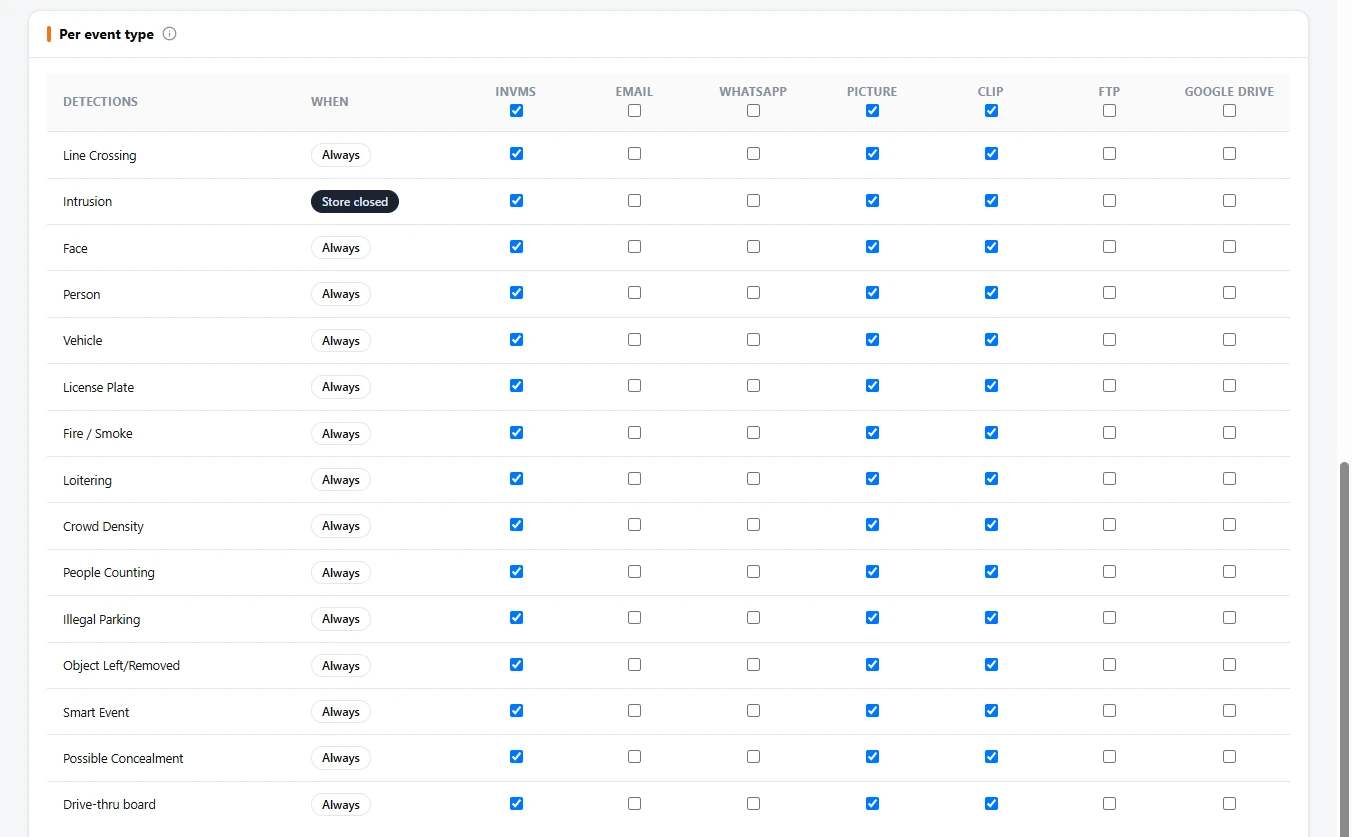
On the first tab, Alert Outputs, each kind of event is a row. Tick where it goes: Email, WhatsApp, FTP, Google Drive; Picture and Clip add the camera's picture and a short video. Then Save.
The drive-thru board's alerts (a car too long at a point, the lane total over its goal, too many cars in line, a drive-off) have their own row: Drive-thru board. The reports do not use these rows: each report's own schedule says where it goes (section 9).
When alerts are sent: store hours and alert times
Every alert is always kept: in Search with its picture and clip, in the reports and in counting. What you choose here is when it is sent. For example: a line crossing or an intrusion on the back lot only after closing and at weekends, while the drive-thru board's alerts go out only while the store is open.
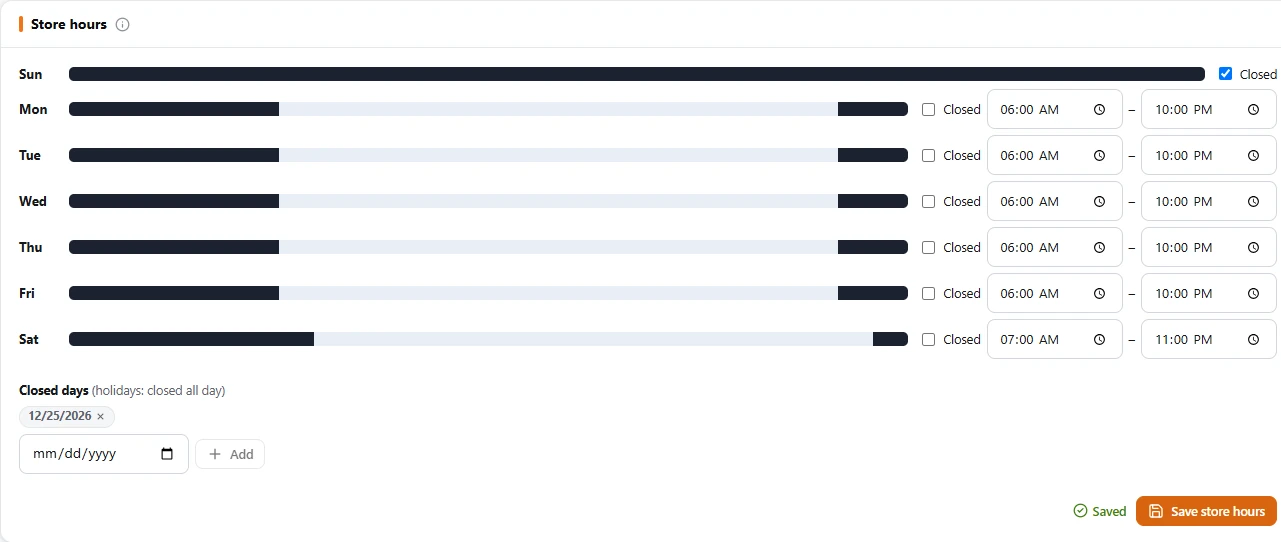
- On the Alert Outputs tab, fill in Store hours: each day's opening and closing time (or Closed), and the Closed days such as Christmas, when the store is closed all day. Hours past midnight run into the next day. Click Save store hours.
- In the When column, click a row's time (it starts at Always) and choose Always, When the store is closed, When the store is open, or At these times (days and hours, as a line's schedule). Click Done, then Save at the top.
- One line or area needs its own time (the back door, day and night)? In Settings › Analytics, select it: under its When (when it detects) is Sends alerts: Like Alert Outputs, or its own time. Save the page.
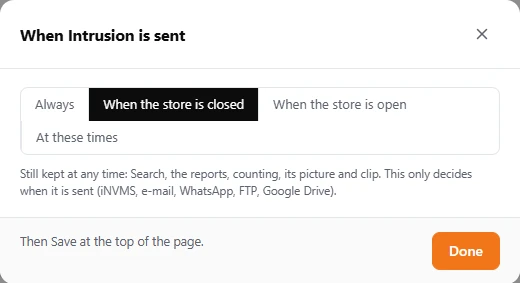
Outside its time, an alert goes nowhere: not by e-mail, WhatsApp, FTP or Google Drive. In Search it is marked Not sent, with the reason (the store was open). A test from Settings › Tools always goes. Until the store hours are saved, the store's-hours choices send at any time.