9Reports
Every car is kept, so the board can answer: how fast were we, when were we slow, and which station held us up.
The board's reports
Click Reports on the board. Choose Today, Yesterday, Last 7 days, Last 30 days or any dates.
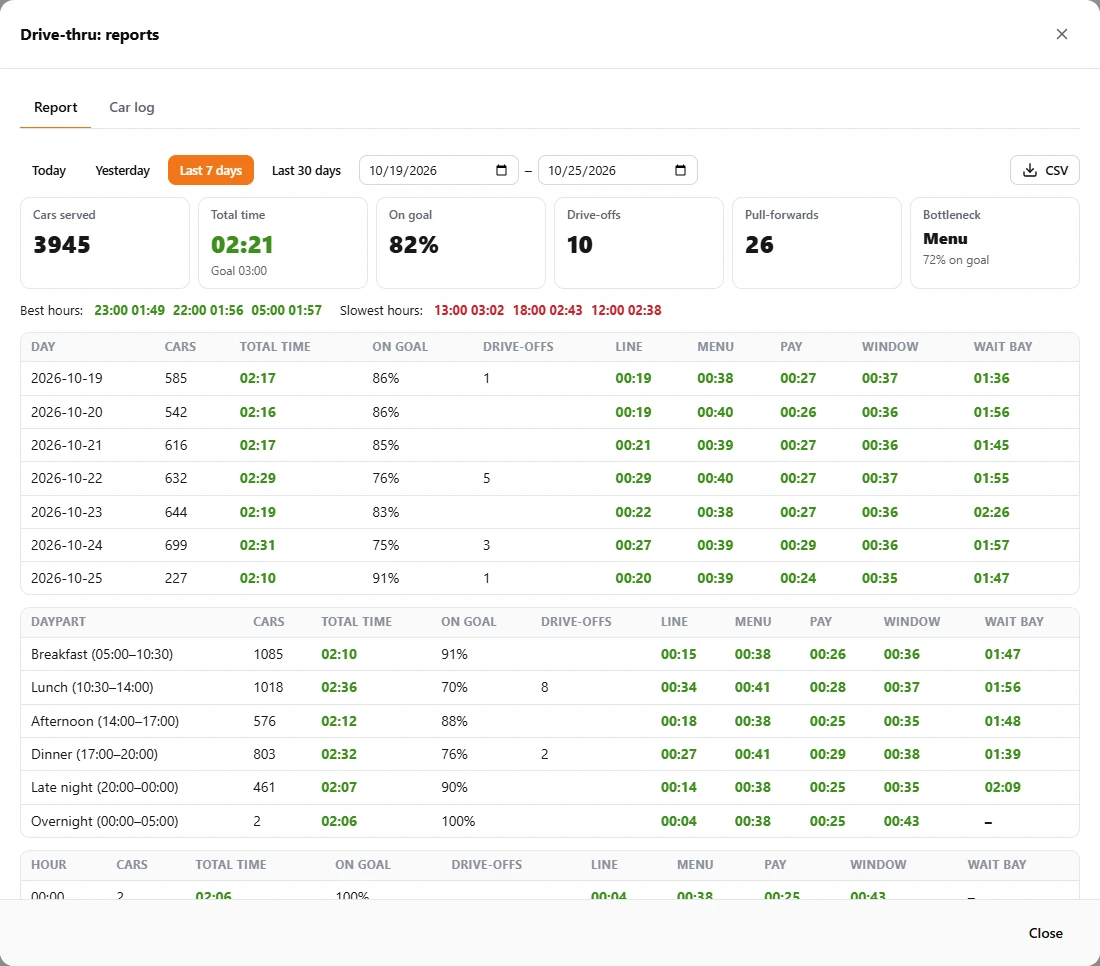
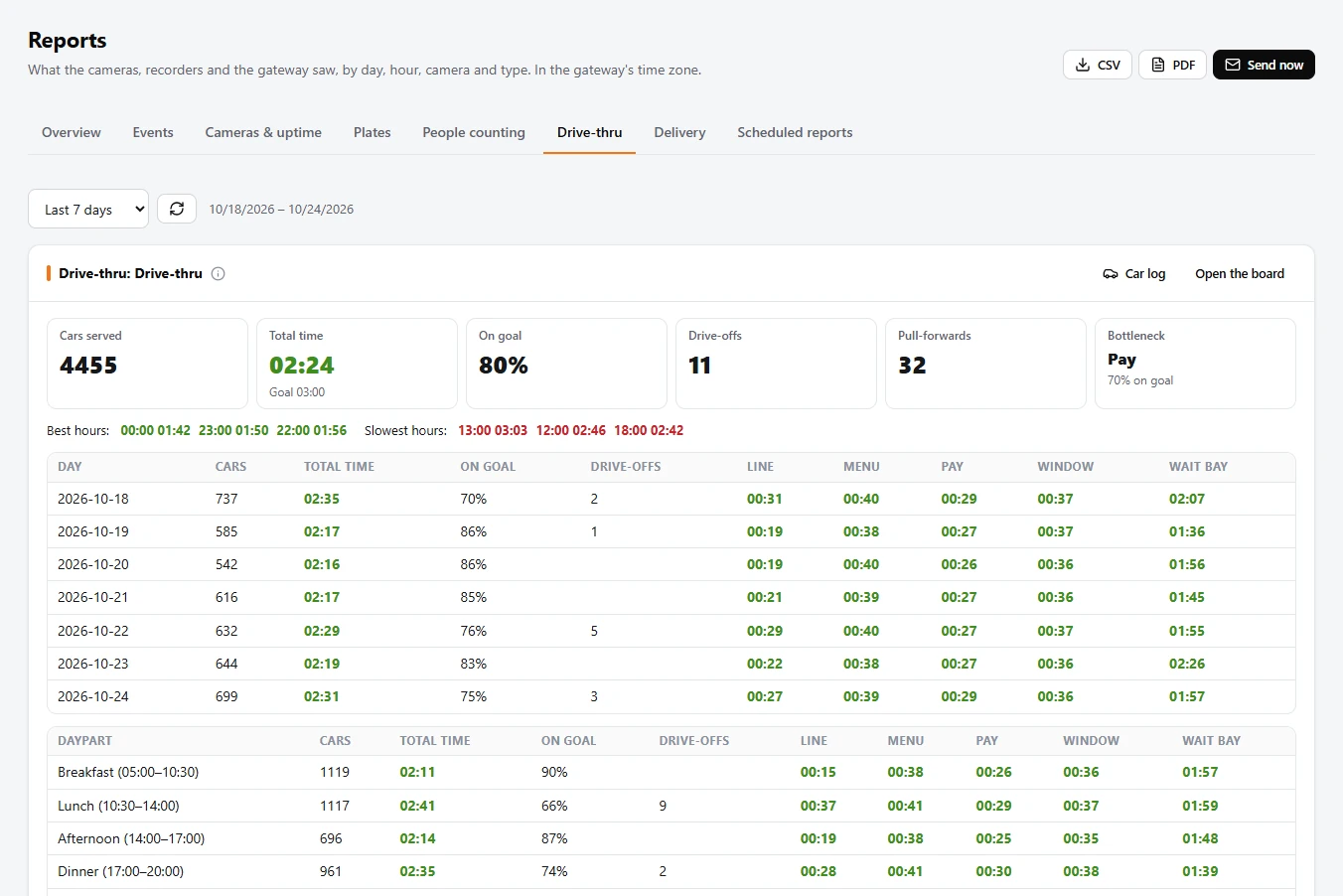
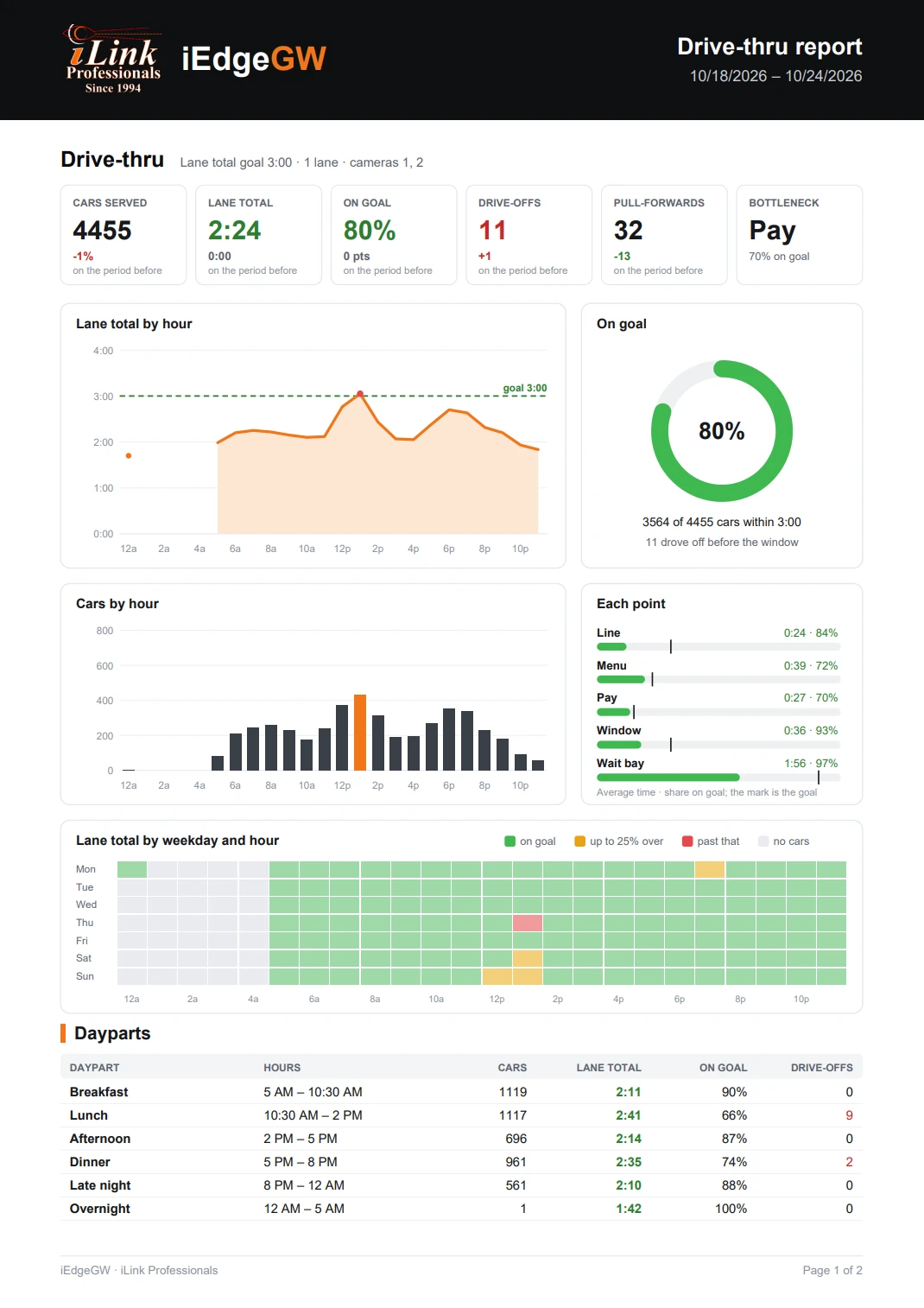
- At the top: cars served, the average total time against its goal, the share on goal, drive-offs, pull-forwards, and the bottleneck (the point that cost the most time over its goal).
- Best and slowest hours of the period.
- By day, by daypart and by hour: cars, total time, share on goal, drive-offs and each point's average, each coloured against its goal.
- CSV downloads the same numbers for a spreadsheet.
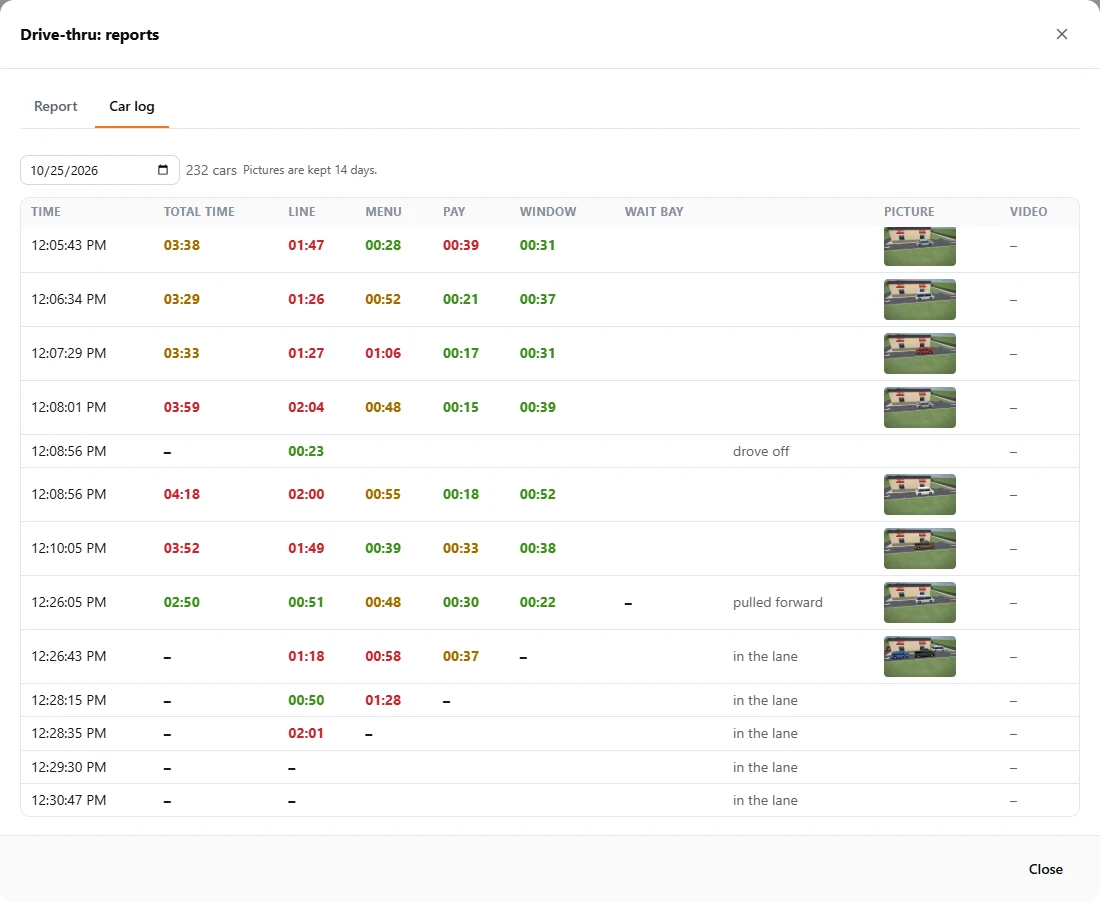
The car log: every car of a day
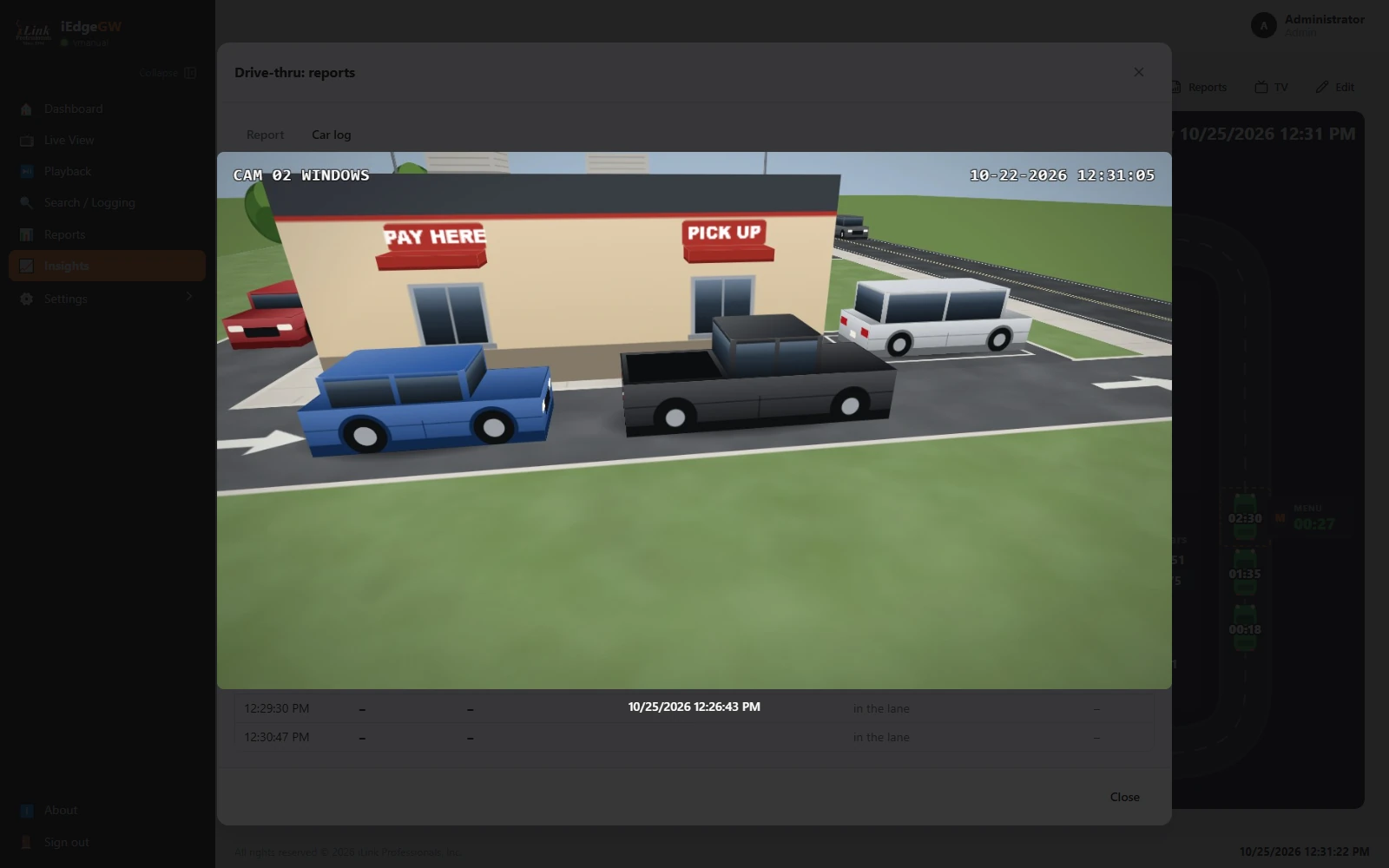
The Car log tab lists every car of a day: when it arrived, its total time, its time at each point, and notes (pulled forward, drove off, in the lane for cars there now). Each car has a picture at each stop (the menu board, pay, the window and the wait bay; the line has none) and a clip from that point's camera that starts 10 seconds before the car got there; click a picture to see it large. Pictures are kept 14 days.
The Reports page and the drive-thru report
In Reports, the Drive-thru tab shows each board's report for the chosen period, beside the gateway's other reports. On that tab, PDF downloads the drive-thru report on its own: for each board, its figures against the period before, the lane total by hour against the goal, the share on goal, cars by hour, each point, the week by weekday and hour, and the dayparts and days. Send now sends it by e-mail, WhatsApp, or as the PDF to the FTP server or Google Drive. The drive-thru is also part of the gateway's activity report and its CSV.
Reports sent by themselves: daily, weekly, monthly
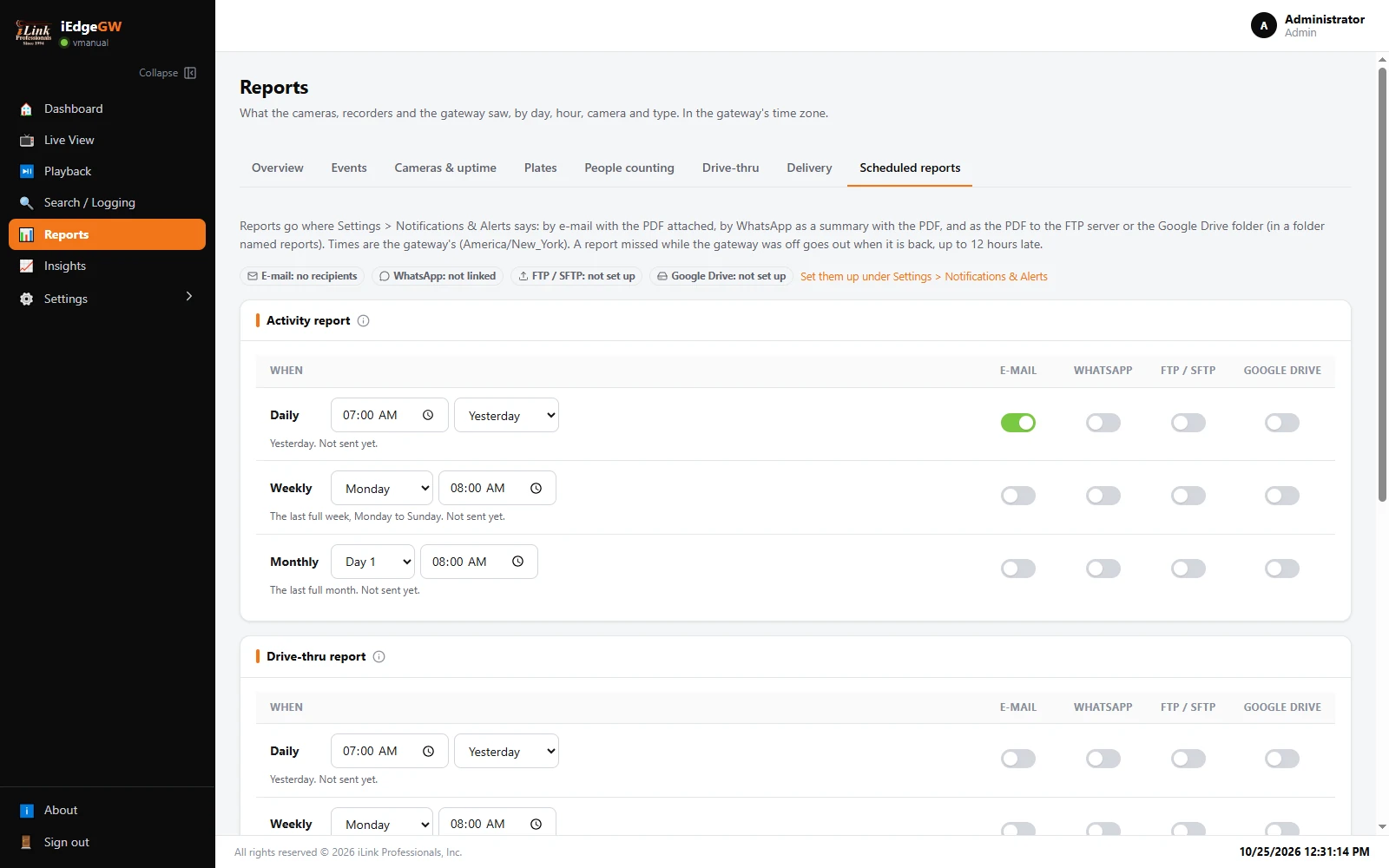
On Reports › Scheduled reports, each report has its own Daily, Weekly and Monthly rows. For the Drive-thru report, choose the time (and the weekday or day of the month), then switch on where it goes: E-mail (the PDF attached), WhatsApp (a summary and the PDF), FTP / SFTP or Google Drive (the PDF, in a folder named reports). Click Save. Above the reports, each way says whether it is ready; set them up first (section 10). A report missed while the gateway was off goes out when it is back, up to 12 hours late. Each row shows when it was last sent; whether the mail server took it is on the Delivery tab.