7Using the board every day
On a screen in the kitchen: TV mode
Click TV on the board for full screen, sized for a TV. Press Esc to leave. Put the board on a TV in the kitchen or at the window, so the crew sees the cars coming and the times. No PC at that TV? Plug it into the gateway itself: section 8.
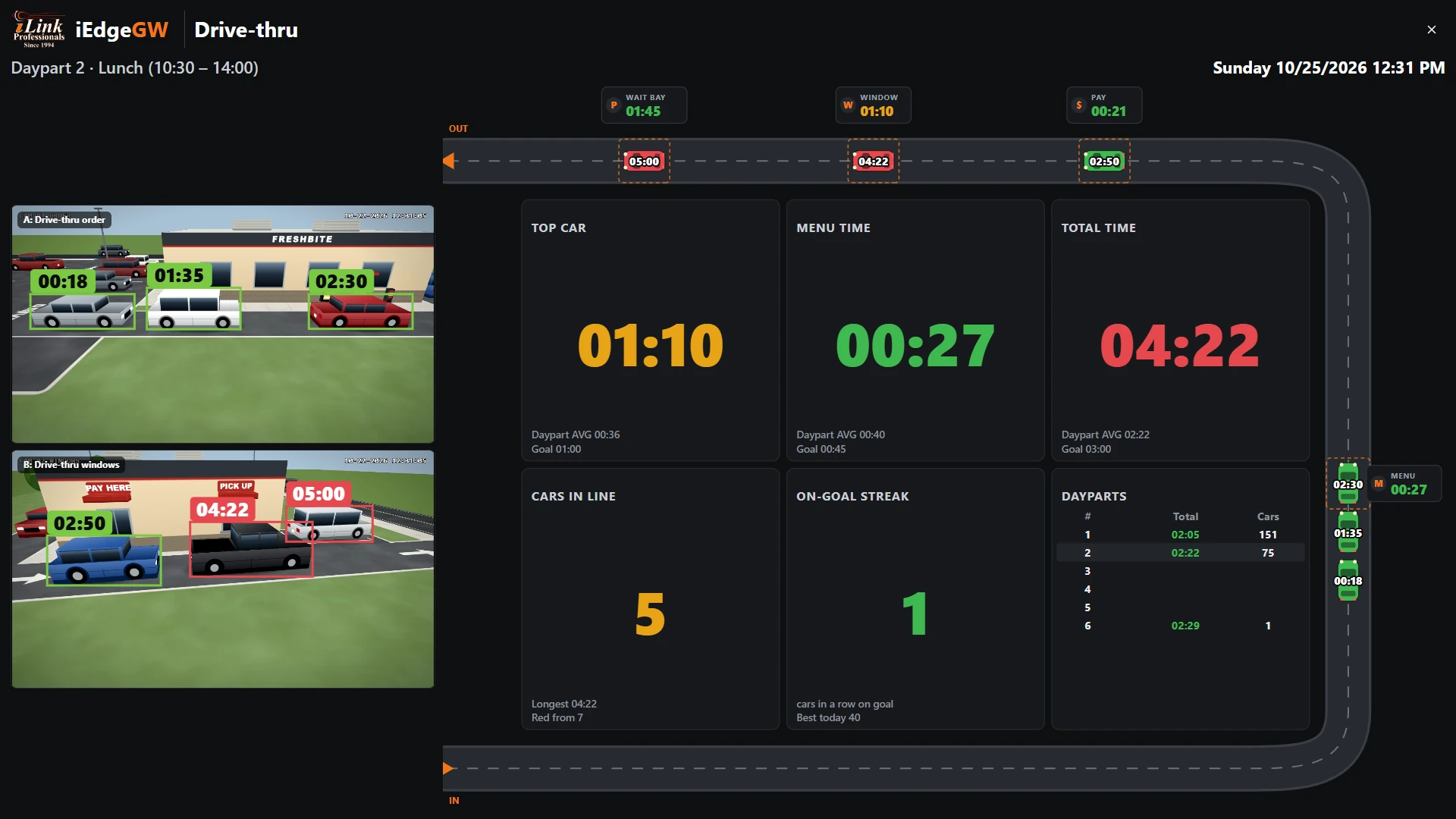
Reading it at a glance
- A red car in the lane has been in the lane longer than the total time goal. Find it on the camera picture: the same time is over it.
- A red sign means the car at that point is taking too long: help that station.
- Cars in line going amber or red: open a second order taker, or move a crew member to the window.
- The dayparts tile shows each daypart's average and cars so far today, the current one highlighted.
- The on-goal streak counts the cars in a row on goal; every 5 gets a small celebration on the screen.
The board's parts on another tab
On any Insights tab, Edit › Add a card › Drive-thru adds a part of a board: its lane with each car's time, or any of its tiles. An owner's overview tab can then show the drive-thru beside the store's other numbers.
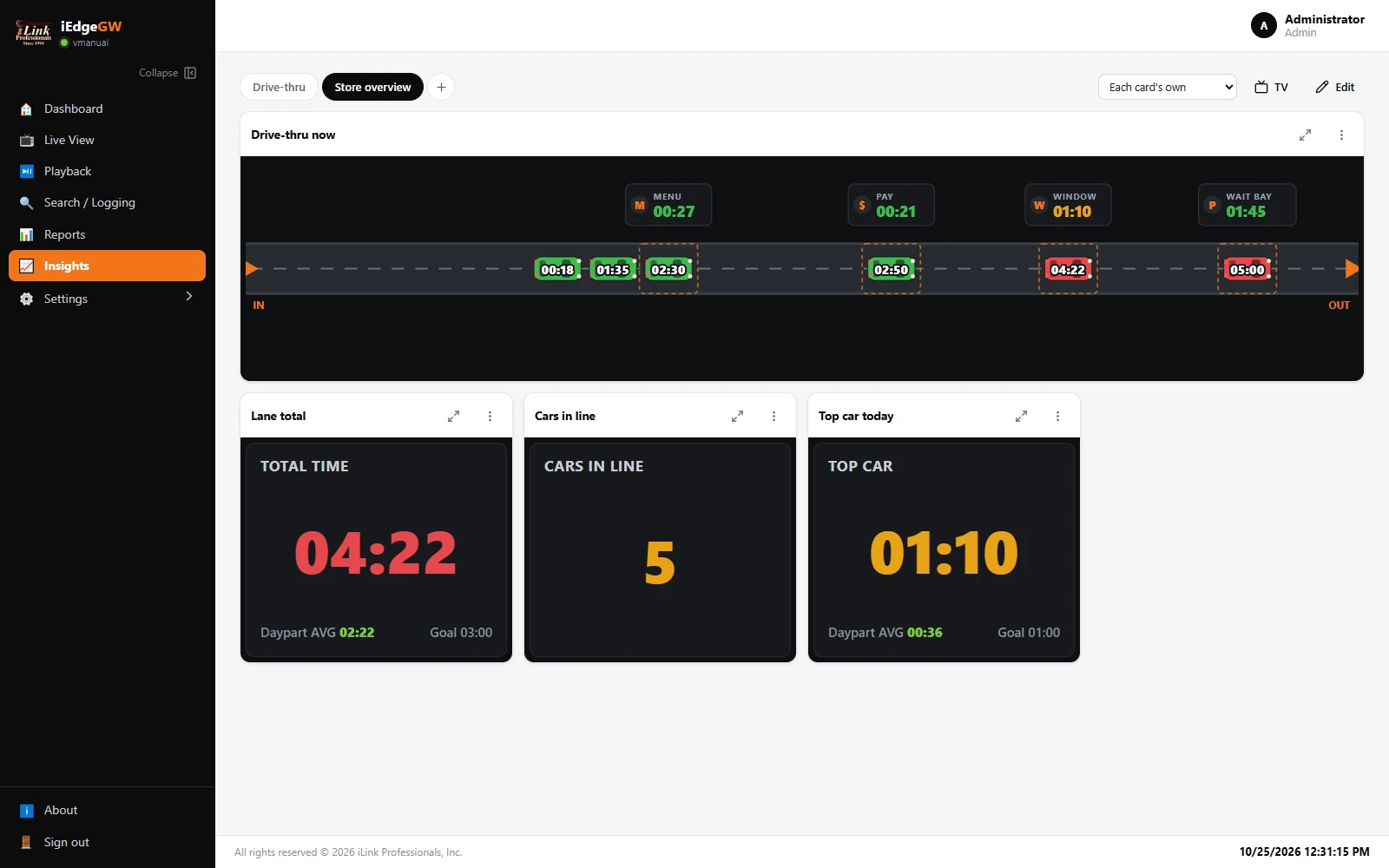
Who sees itIn Edit › Dashboard settings, Shown to chooses who sees the board: everyone who can sign in, staff only, or chosen viewers. For the kitchen screen, a viewer account is enough: viewers see the boards shown to them and cannot change anything.