10Where alerts and reports go
The board's alerts and the reports leave the gateway the ways you set up once, for the whole gateway, in Settings › Notifications & Alerts: e-mail, WhatsApp, and copies to an FTP / SFTP server or Google Drive. Set them up and test each one before turning the board's alerts on.
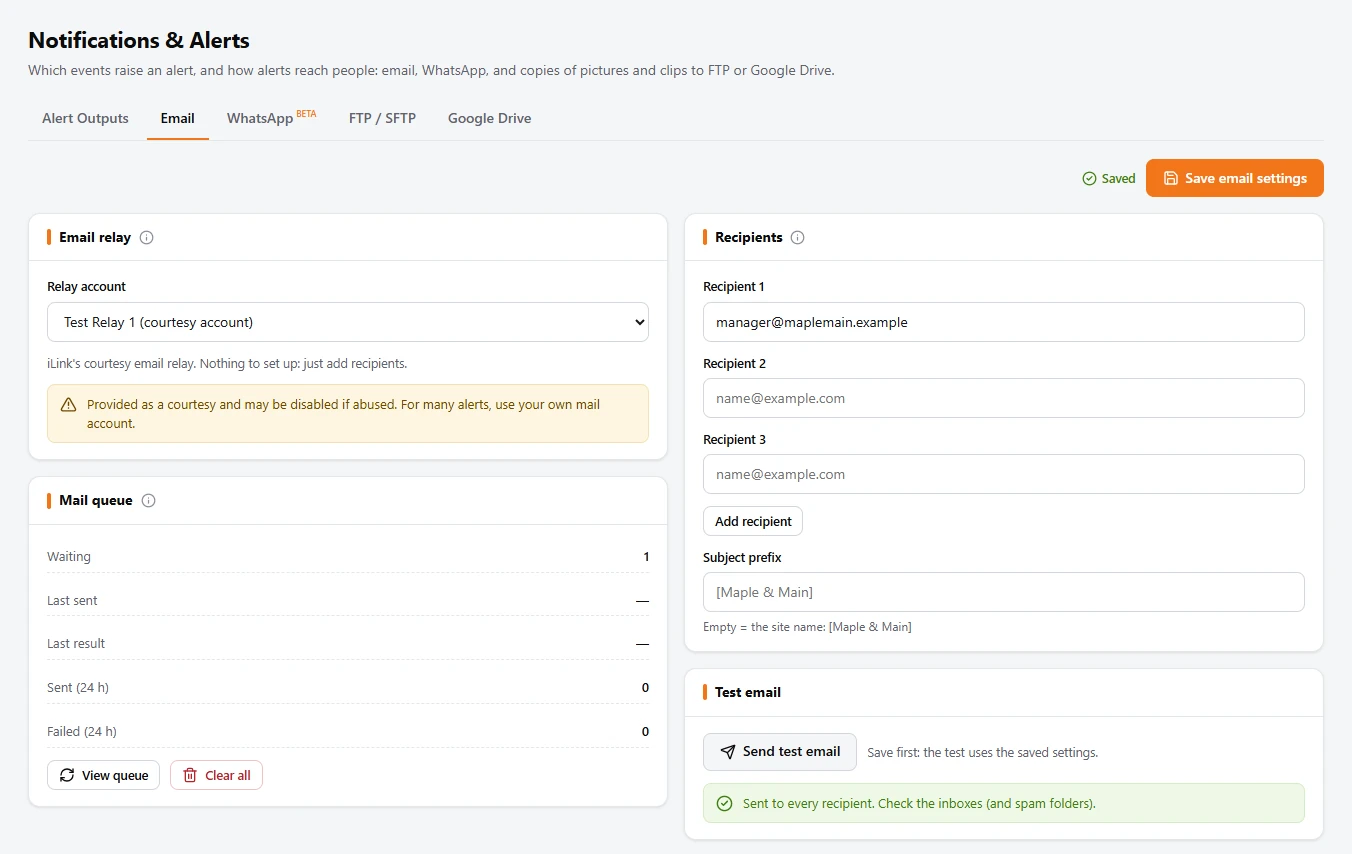
- Open the Email tab. Under Relay account, the easiest is Test Relay 1 (courtesy account): iLink's own mail relay, nothing to set up. For many alerts or your own sender address, choose your mail provider (Gmail, Yahoo, Outlook.com, Microsoft 365, GoDaddy) and fill in its account.
- Type the managers' addresses under Recipients.
- Click Save email settings, then Send test email. Sent to every recipient means the mail server took it: check the inbox (and the spam folder the first time).
- Choose the phone that will send the alerts: a separate business number is best, kept charged and online.
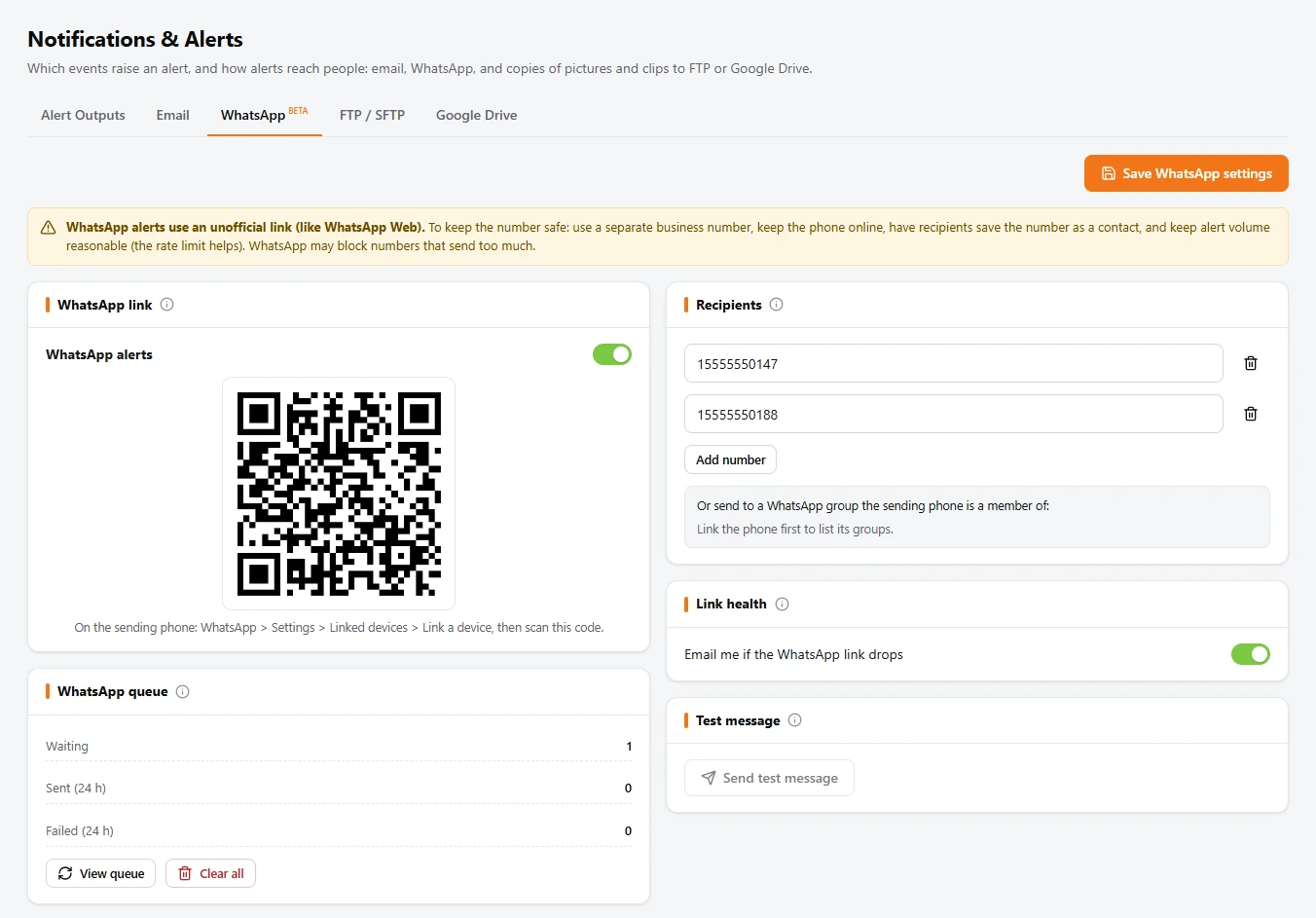
- On the WhatsApp tab, turn on WhatsApp alerts. A QR code appears in a few seconds.
- On that phone: WhatsApp › Settings › Linked devices › Link a device, and scan the code. The card then says Linked, with the sending number. The link survives restarts and updates.
- Under Recipients, add the numbers in international format, country code first; or, once linked, a WhatsApp group. Click Save WhatsApp settings, then Send test message.
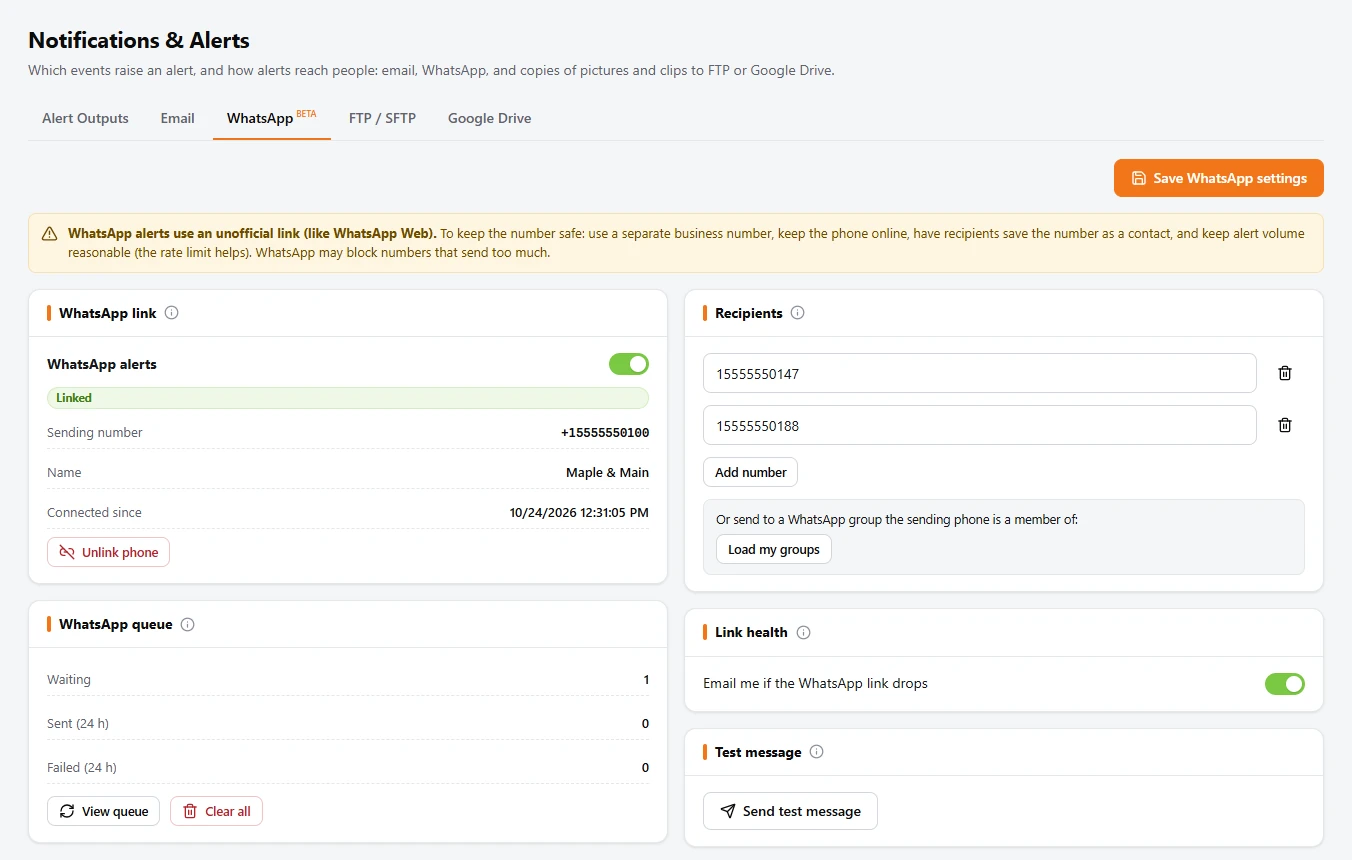
The board's own people (section 6) are reached through these same accounts: their e-mail addresses and WhatsApp numbers are on the board, the sending account is here.
Copies to an FTP / SFTP server or Google Drive
Each alert's picture and text, and each report's PDF, can also be copied to a server or a Google Drive folder, kept as long as you like. FTP / SFTP: turn on Upload to FTP, choose the protocol (SFTP is the safest), the server, its port, the account and the folder, then Save FTP settings and Test connection. Google Drive needs Google Workspace: a service account key and a folder in a Shared Drive (the page's Setup box has the steps).
Which alerts go where: Alert Outputs
On the first tab, Alert Outputs, each kind of event is a row: tick where it goes (Email, WhatsApp, FTP, Google Drive; Picture and Clip add the camera's picture and a short video), then Save. The front counter board's alerts have their own row, Front counter board. The reports do not use these rows: each report's schedule says where it goes.
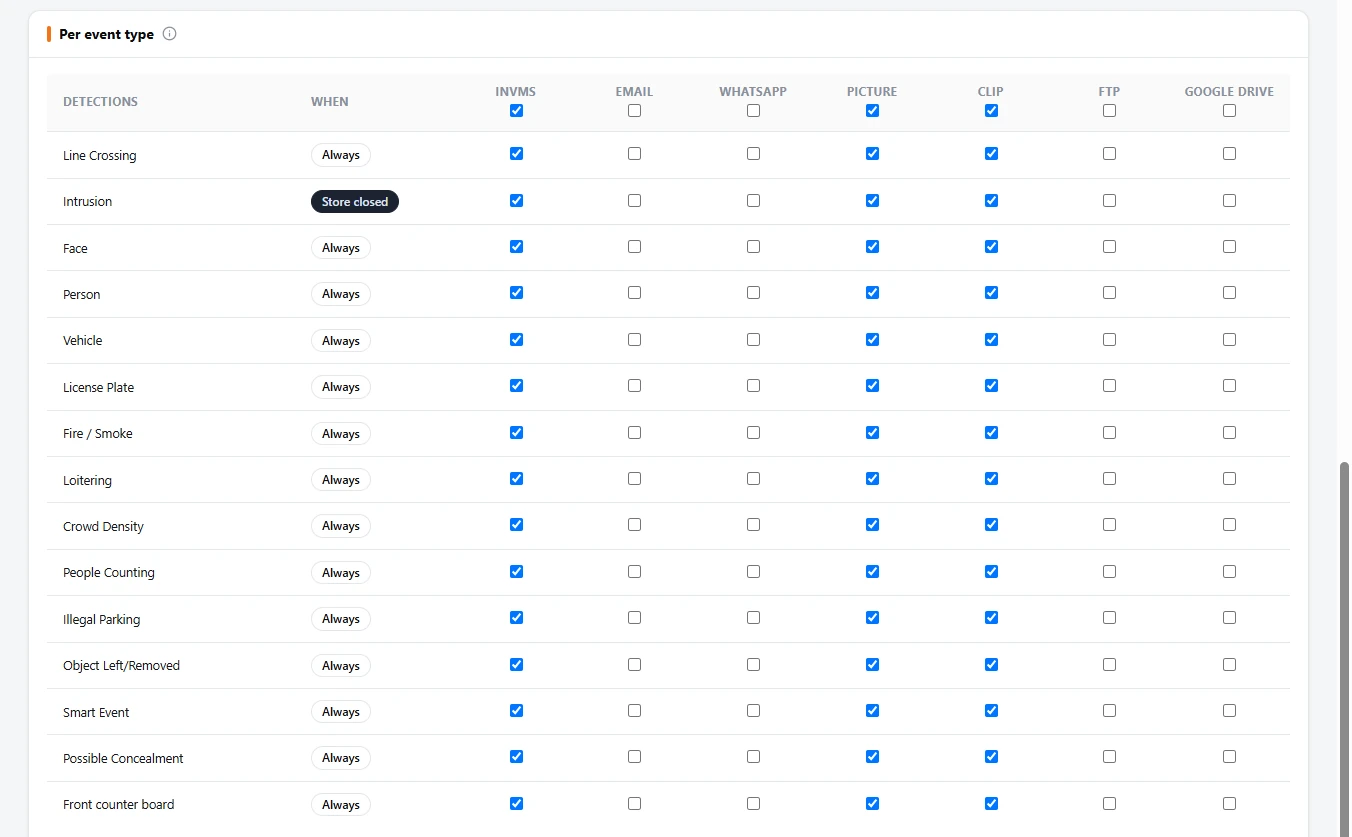
When alerts are sent: store hours and alert times
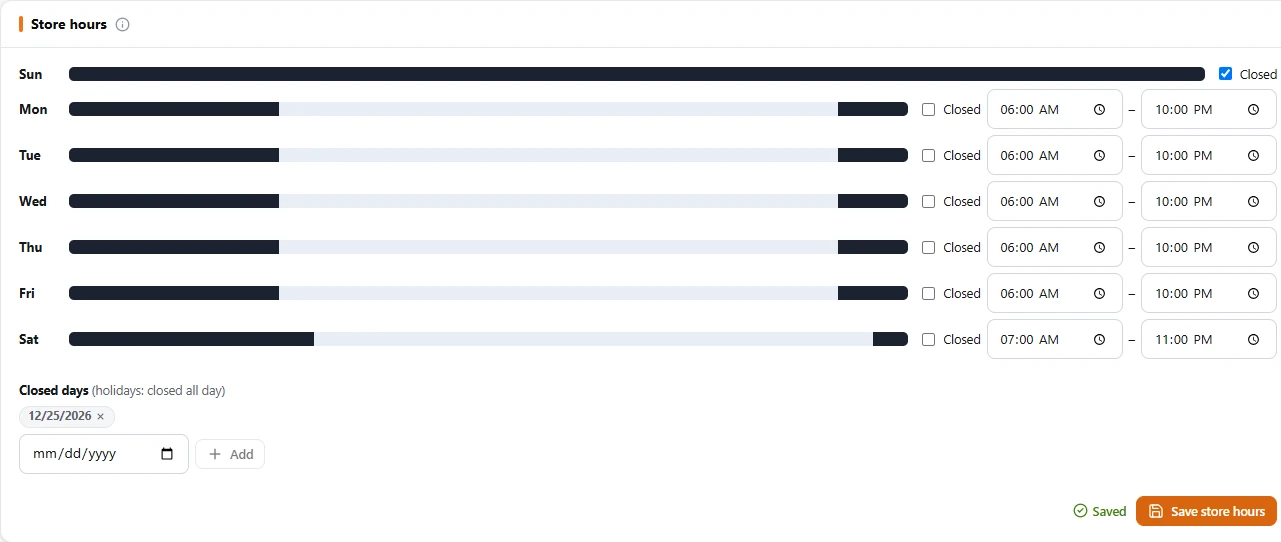
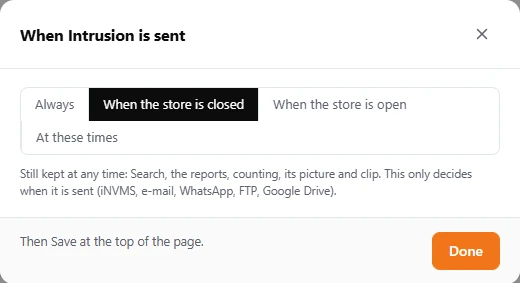
Every alert is always kept: in Search with its picture, in the reports and in the counts. What you choose here is when it is sent. Fill in Store hours on the Alert Outputs tab (each day's opening and closing, and closed days such as Christmas) and click Save store hours. Then, in the When column, choose for each row: Always, When the store is closed, When the store is open, or At these times.