8A TV with no PC: the gateway's HDMI ports
The gateway has two HDMI ports. One shows the gateway's own screen; the other can show the front counter board all day, on its own, with nobody signed in. A TV over the checkouts needs nothing but an HDMI cable.
Plug in the TVs
Any TV or monitor works; 1920×1080 is ideal. Use HDMI 2 for the front-end TV (the board) and HDMI 1 for a screen in the office (the gateway's main screen). A USB mouse and keyboard on the gateway work the main screen.
Open Settings › Support › HDMI output
Each port is listed with the display it found (its make and model), whether its signal is on, and what it shows: Main screen or Insights TV.
Put the board on its own screen
Turn on Show an Insights dashboard on its own screen, choose the front counter board under Dashboard, keep On port at HDMI 2 (or the port the TV is on) and click Save. Both screens start again in about 15 seconds; the TV then shows the board.
Check it from here
Identify screens shows each port's name on its TV for 10 seconds. Capture HDMI 1 and Capture HDMI 2 show, on this page, exactly what each TV shows: check the front-end TV from the office, or from anywhere through the gateway's remote address.
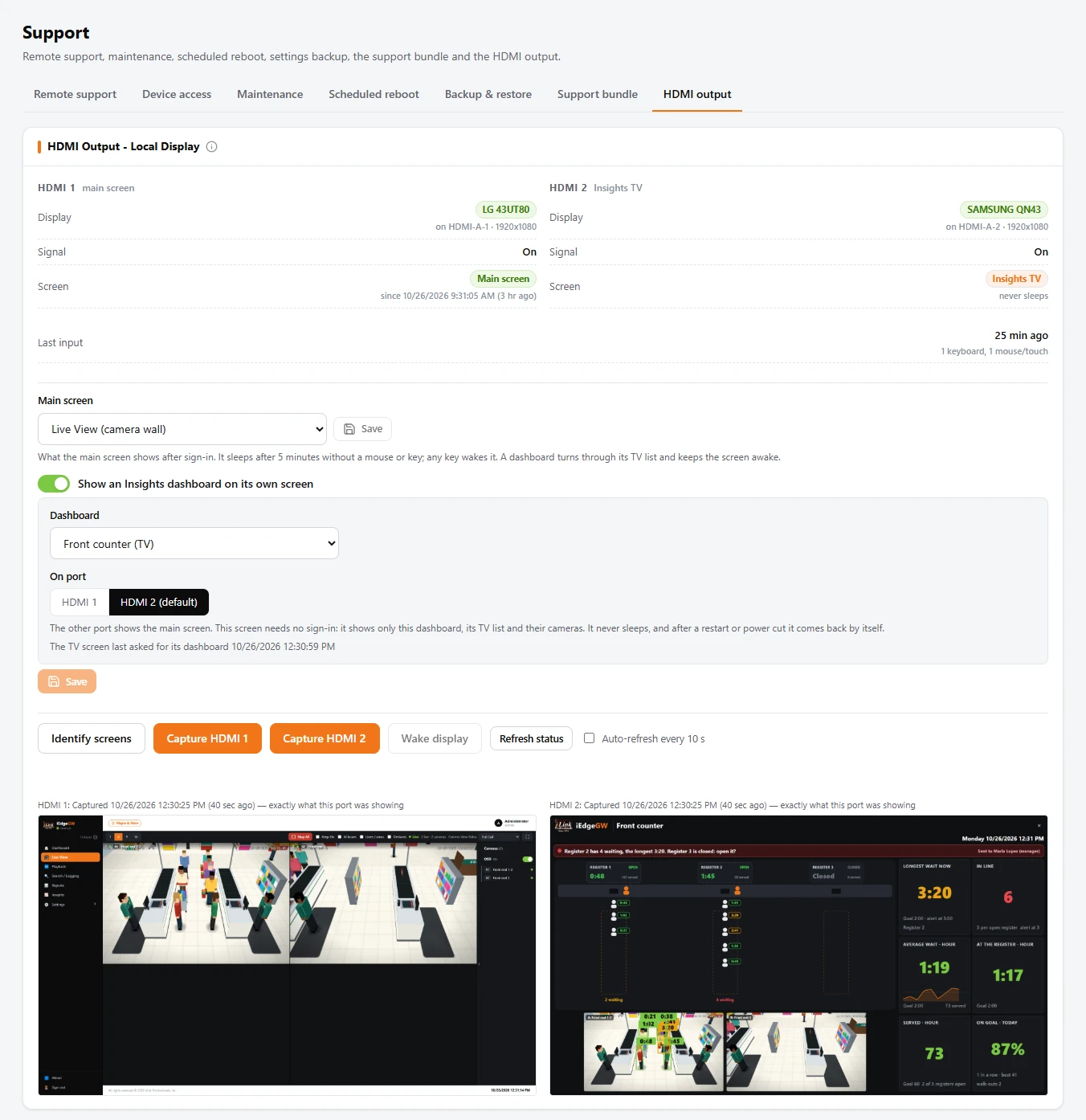
- The board's screen needs no sign-in: it shows only that dashboard and its cameras, nothing else of the gateway. It never sleeps, and after a restart or a power cut it comes back by itself.
- The main screen asks for a sign-in, then shows Live View or an Insights dashboard in TV mode. It sleeps after 5 minutes without a mouse or key.