iEdge Gateway · Setup and user guide
Smart AI & Insights: Security alerts and live dashboards
Everything an owner or installer needs for the gateway's AI on your own cameras: where the cameras look, lines and areas, every kind of alert and who gets it, the Insights dashboards, and what to check when something looks wrong.
1
What AI Analytics doesWhat the gateway's AI does on the cameras you already have: Security alerts the moment something is wrong, and live Insights dashboards. Use either, or both.
2
Where it worksWhere AI analytics works: stores, gas stations, warehouses and yards, restaurants, offices, churches, construction sites and car lots.
3
Before you startWhat to check before you start: how many cameras one gateway takes, and where each camera should look for Security and for Insights.
4
Guard a camera: lines and areasGuard a camera with AI: draw a line or an area on its picture, pick people or vehicles, and set what raises an alert.
5
More detectionsMore AI detections: loitering, crowds, illegal parking, objects left or taken, fire and smoke as an early warning, and possible shoplifting at the shelves...
6
When alerts are sentChoose when alerts are sent: always, only while the store is closed, only while it is open, or at set times, with one rule different from the rest.
7
Where alerts go, and who gets themChoose which alerts go where in Alert Outputs, and set up e-mail and WhatsApp so the right people get the picture and the clip.
8
The alert, and finding it againWhat an alert looks like on WhatsApp and by e-mail, with its picture and clip, and how to find any event again in Search / Logging.
9
Your cameras' own alarms, and moreAlarms from your cameras and recorders, checked by the AI first; what happens when a camera stops working; Live View and Playback on site or away.
10
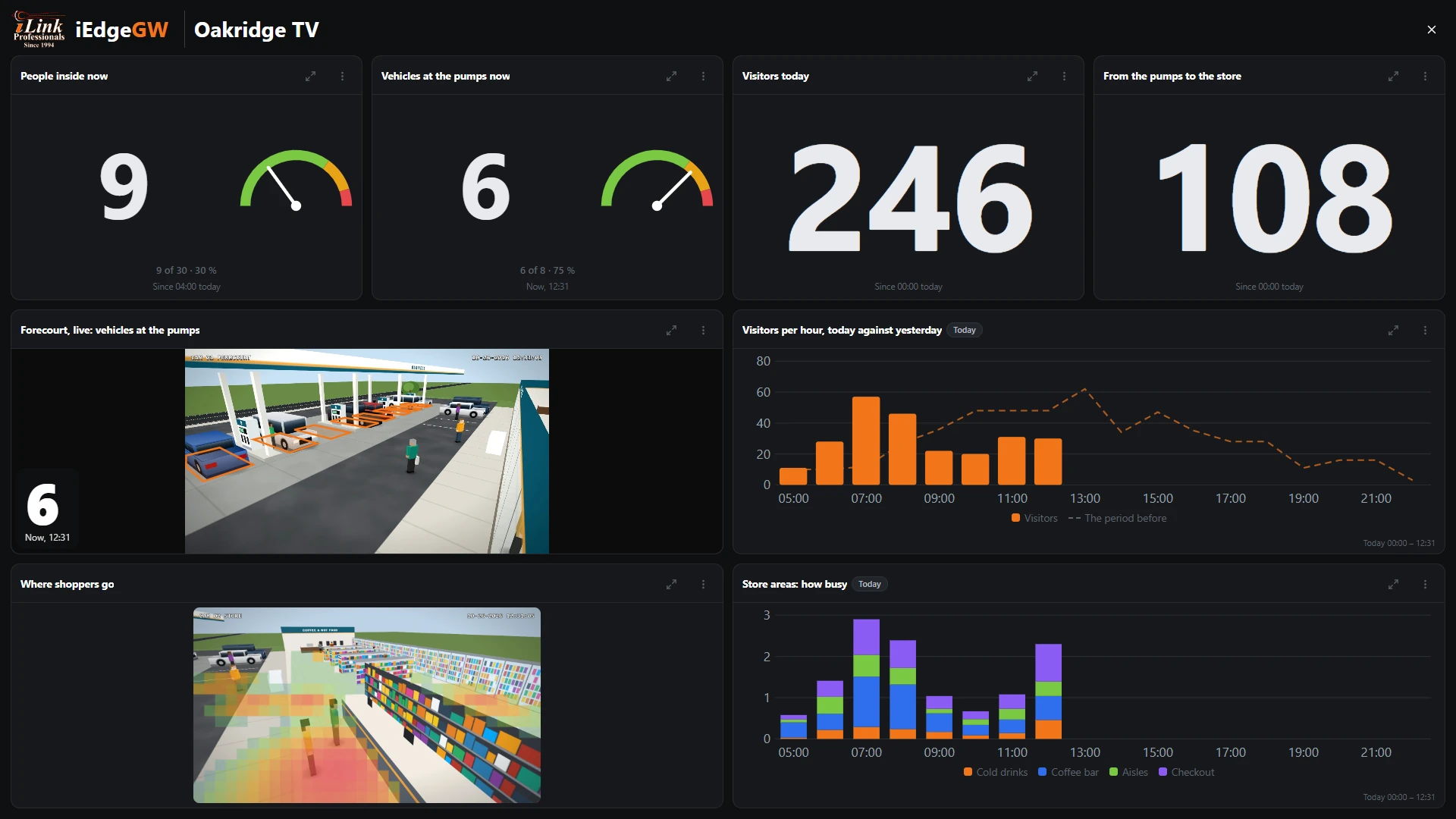
Dashboards: a tab per locationMake a live Insights dashboard per location from your security cameras, with a tab for each place.
11
Cards: numbers, charts, heat mapsReady-made Insights cards: people inside now, visitors per hour, busiest hours of the week, heat maps, groups of cameras and charts.
12
Zones and lines: drawing them rightHow to draw counting zones and lines on a camera's picture so the Insights numbers come out right.
13
Every day: TV, phone, full screenUse Insights every day: TV mode in the back office, a card full screen, dashboards on a phone, and the numbers behind a chart.
14
How it countsHow the AI counts: visitors in and out, people inside now, time spent in a zone, and vehicles by type.
15
When something looks wrongWhat to check when something looks wrong: no alerts, too many alerts, numbers that look off, or a camera that stopped.
16
Setup checklistA printable setup checklist for AI analytics on the iEdge Gateway: Security first, then Insights.
Stuck on a step?
iLink Professionals supports owners and installers. Call, or send us a message.