Skip to the content
Smart AI & InsightsGUIDE
All topics (10 of 16)
  1. 1What it does
  2. 2Where it works
  3. 3Before you start
  4. 4Guard a camera: lines and areas
  5. 5More detections
  6. 6When alerts are sent
  7. 7Where alerts go
  8. 8The alert, and finding it again
  9. 9Cameras' own alarms, and more
  10. 10Dashboards
  11. 11Cards, charts, heat maps
  12. 12Zones and lines
  13. 13TV, phone, full screen
  14. 14How it counts
  15. 15When something looks wrong
  16. 16Setup checklist

Smart AI & Insights › Guide › Dashboards: a tab per location

10Dashboards: a tab per location

Part 2
Insights

Live dashboards of how your business runs, from the same cameras and the same AI.

Insights is a set of dashboards, one tab each. A dashboard is a page of cards: live numbers, charts, heat maps and cameras. Most owners make one tab per location, and one for a TV.
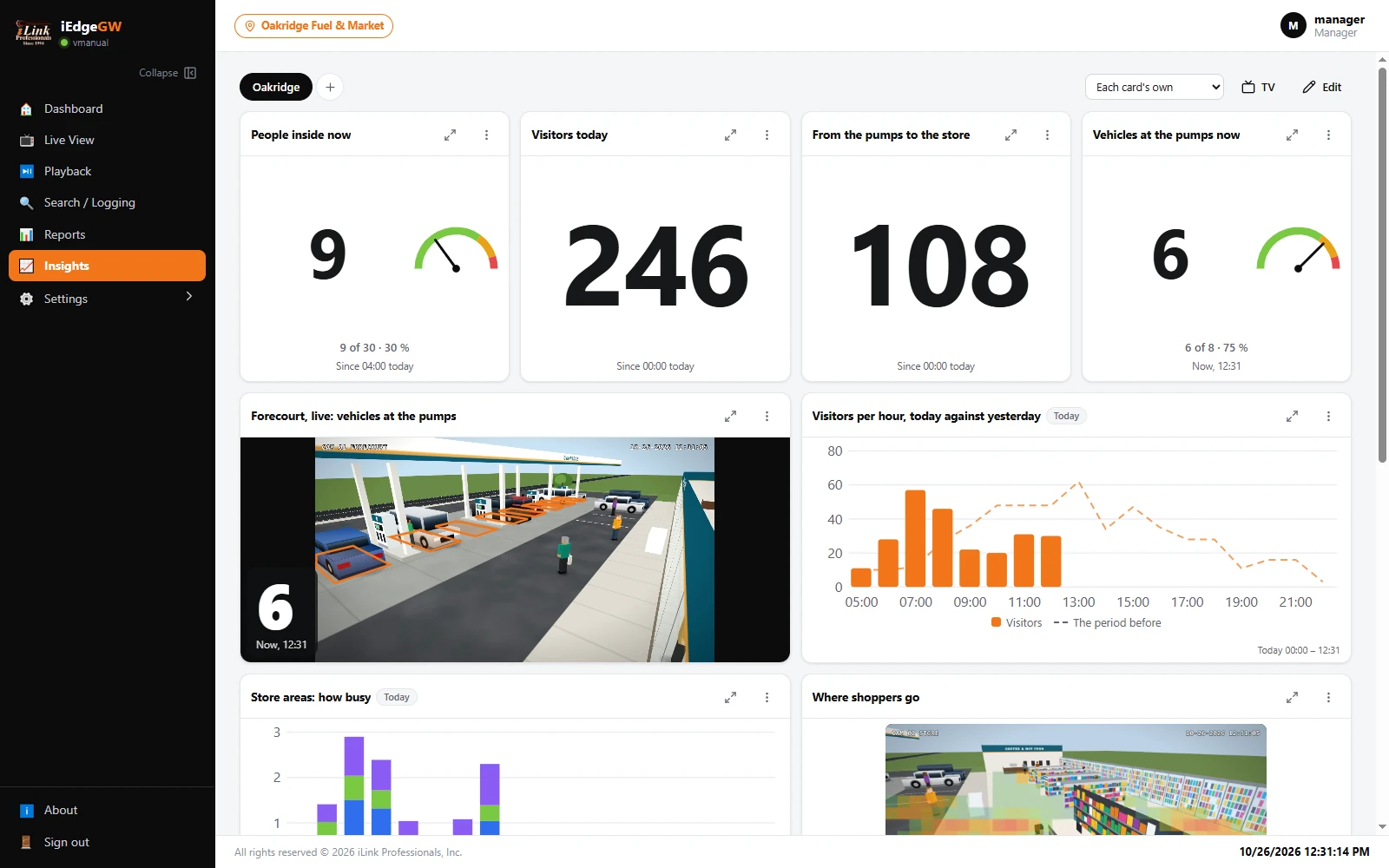
Smart AI & Insights guide: Dashboards: a tab per location
1 2 3 4 5 6
1The site you are signed in to.
2The tabs: one per dashboard; + makes a new one.
3Period for every card (or each card's own), TV, and Edit (add, move, change and remove cards).
4Live numbers: people inside now (with a gauge against the store's capacity), visitors today, walk-ins from the pumps, vehicles at the pumps.
5A live camera with its zones drawn on it and the number over it.
6Charts: here visitors per hour today, the dashed line the day before.

Make a dashboard

A new tab

Open Insights and click + next to the tabs. Choose Cards (the other two types are the drive-thru and front counter boards, each with its own guide). Give it a Name: a short store name works best on a phone.

Who sees it, and the opening hours

Shown to chooses who can open the tab. Opening hours (optional) are the store's: charts and breakdowns count only those hours and days, unless a card has its own. Click Save.
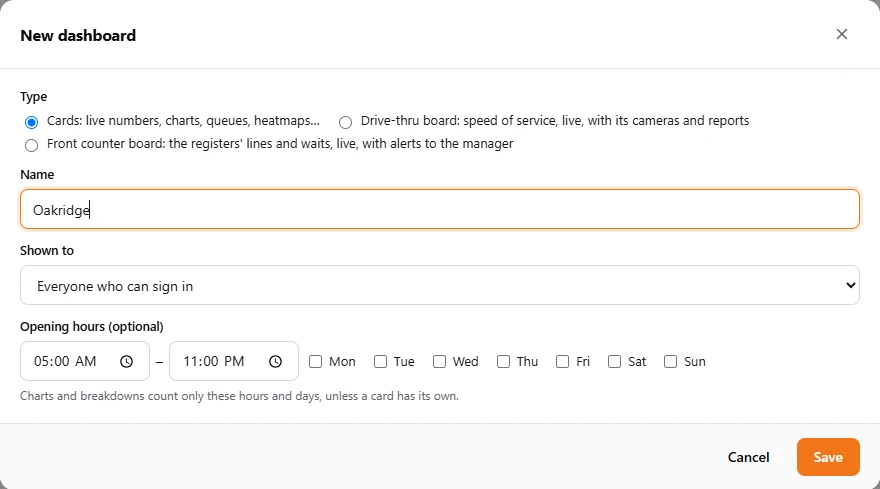
The new dashboard "Oakridge", open 5:00 AM to 11:00 PM.

Add the cards

The new tab opens in edit mode: click Add a card for each card (section 11), then Done. Drag a card by its title to move it; its ⋮ menu changes or removes it.

Stuck on a step?

iLink Professionals supports owners and installers. Call, or send us a message.