3Before you start
A few minutes of preparation makes the rest a few clicks.
- The gateway is running and you can sign in. An admin sets up the AI rules and the alerts; a manager can make and change dashboards.
- The cameras are added in Settings › Cameras / NVR and play in Live View: straight from the cameras, or through your recorder.
- Analytics is on in Settings › Analytics, with the cameras you want the AI to watch.
- For alerts: e-mail and/or WhatsApp set up in Settings › Notifications & Alerts (section 7), and the e-mail addresses and WhatsApp numbers of the people to tell.
- Optional: a TV in the office or behind the counter, plugged into the gateway's HDMI port (section 13).
How many cameras
Every camera the AI watches takes a share of the gateway's AI capacity, and Security and Insights share that one capacity: a camera that alerts and counts costs the same as one that only does one of them, because the AI finds each person once. A camera with nothing moving costs little. Settings › Analytics shows how much of the capacity is used, and refuses a camera that would not fit rather than slowing every camera down. A gateway takes up to 16 cameras; how many of them the AI can watch at once depends on what each one watches, and the capacity card tells you before you add one.
Where the cameras should look
The AI counts a person or a vehicle where it stands: the bottom middle of its box, its feet or its wheels. So a camera must see the ground where people walk and vehicles stop.
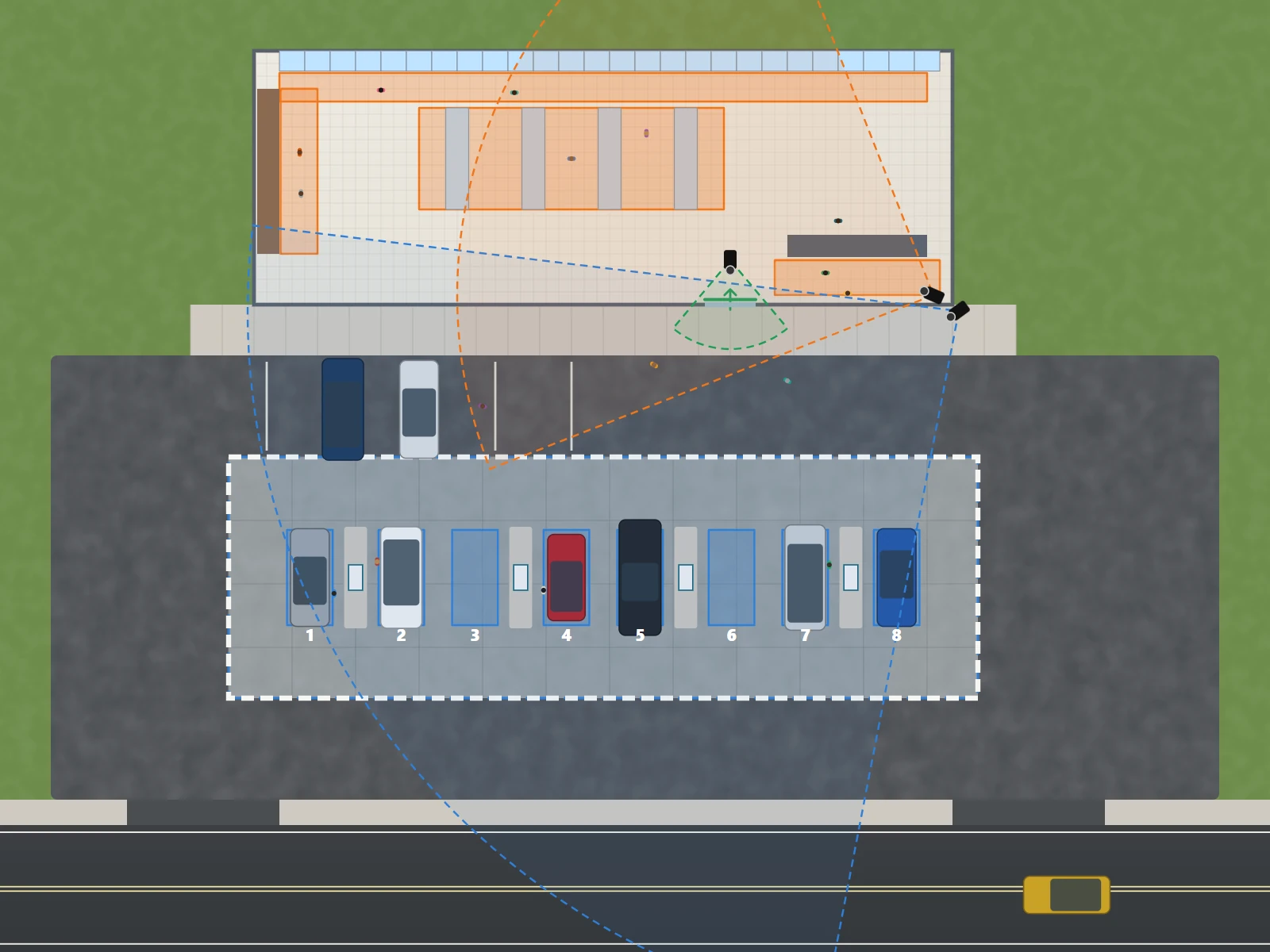
Oakridge from above: camera 1 (Forecourt) on the store's corner sees all eight pumps and the walk to the door; camera 2 (Store), on the ceiling by the checkout, sees the coolers, the coffee bar, the aisles and the checkout; camera 3 (Door) looks down at the front door.
Do
- Mount it high (about 10 to 16 ft) and look down: people do not hide each other.
- See the ground of each place you want to guard or count, with some room around it.
- Light at night: a camera with infrared, or a lit area, for after-hours alerts.
Avoid
- Shelves, displays or pillars between the camera and the floor you care about.
- A camera at eye level: the first person hides everyone behind.
- Headlights or the sun straight into the lens.