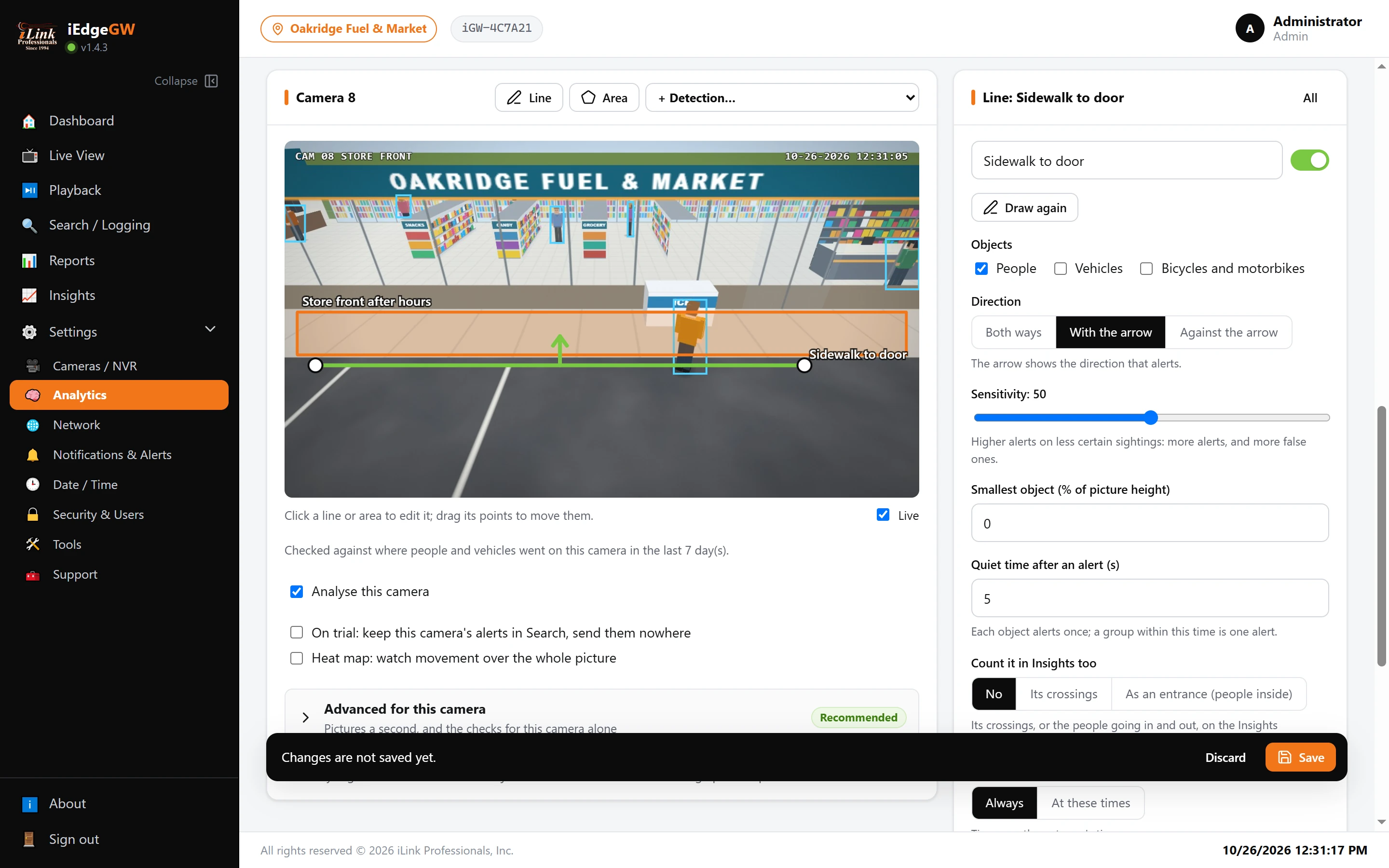
4Guard a camera: lines and areas
The gateway's AI watches the places you choose and tells you, on your phone or by e-mail, the moment something is wrong.
On a camera's picture you draw what the AI should watch: a line (an alert when something crosses it) or an area (an alert when something is inside it). It alerts only on the kinds of objects you choose: people, vehicles, bicycles and motorbikes. A cat, a moving shadow or headlights are not a person or a vehicle.
It is all in Settings › Analytics, on the Detections tab. Only an admin can change it.
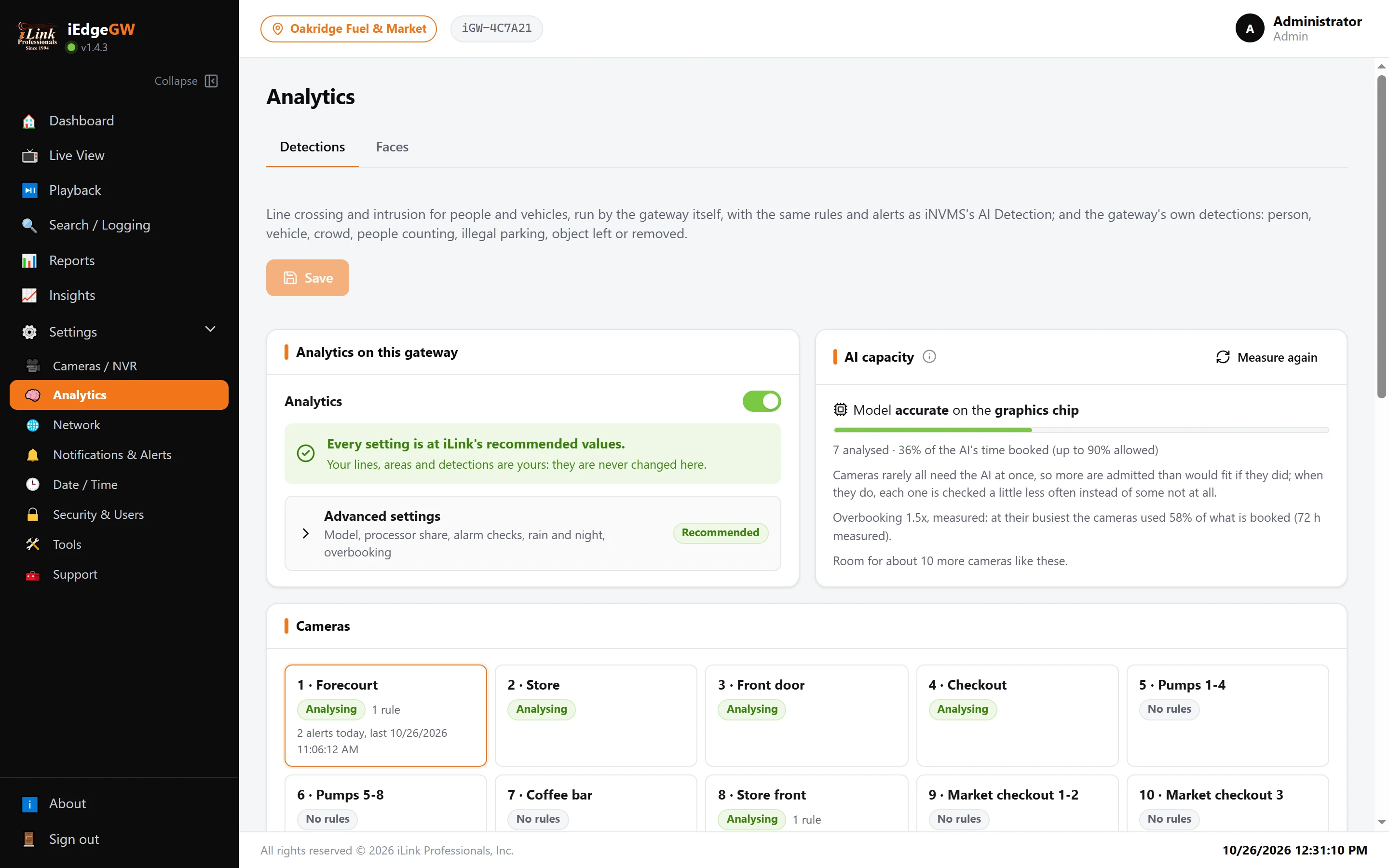
Open the camera
Click the camera's tile. A camera is watched once it has a line, an area or a detection (Analyse this camera stays ticked).
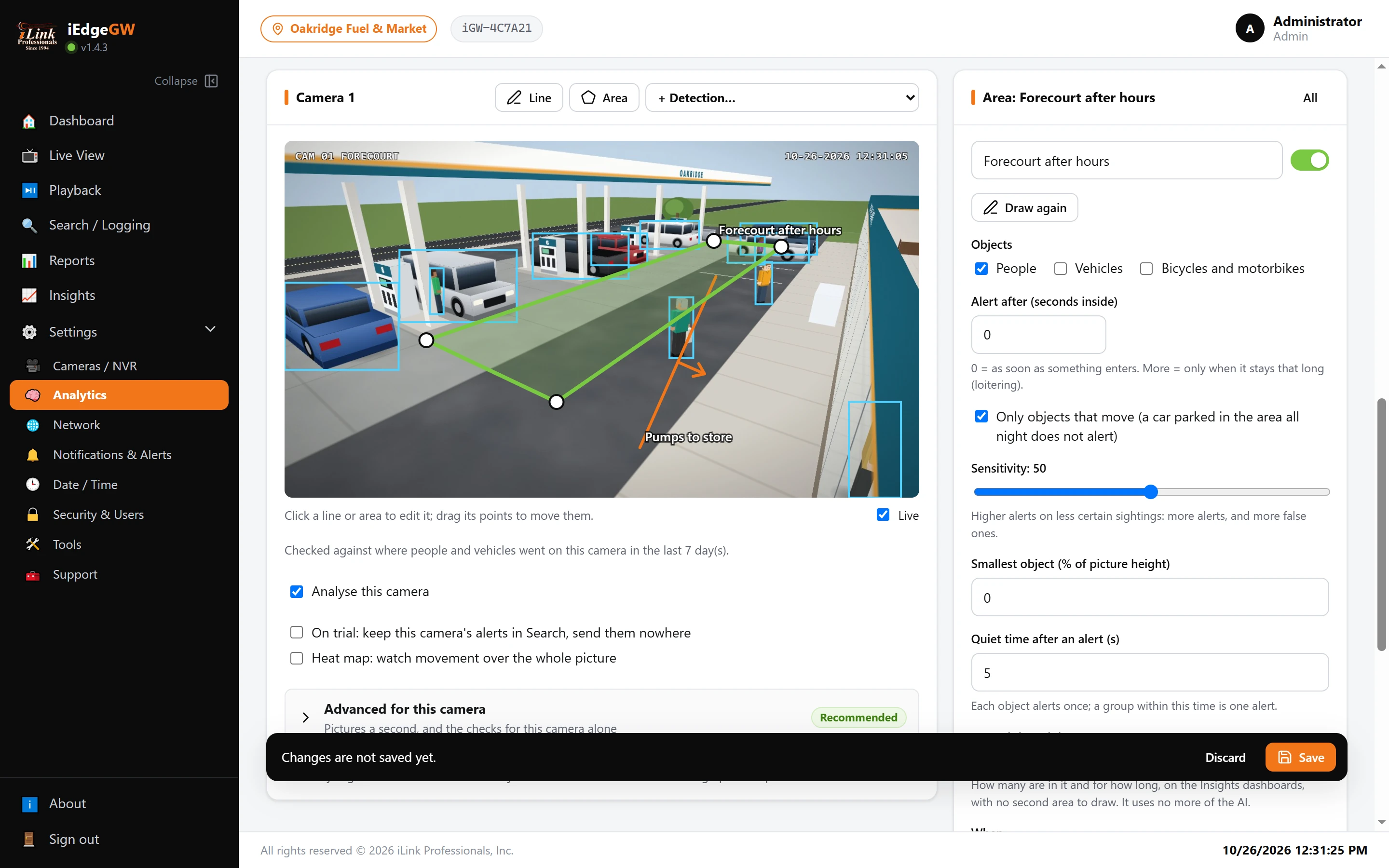
Draw the line or the area
Click Line and click two points: the line goes from the first to the second. Or click Area, click each corner, and click the first corner again to close it (or double-click, or press Enter). Undo point takes back a corner; Esc cancels. Later, click a line or area to change it and drag its points.
Draw it on the ground, where people walk and vehicles drive: the AI tests where each one stands (its feet, its wheels).
Say what should alert
- Objects: People, Vehicles, Bicycles and motorbikes.
- A line's Direction: Both ways, or only With the arrow or Against the arrow. The arrow points to the right-hand side as you go from the first point to the second.
- An area's "Alert after (seconds inside)": 0 alerts as soon as something enters (Intrusion); more alerts only when it stays that long (Loitering).
- Only objects that move (on by default): a car parked in the area all night does not alert.
Fine-tune only if needed
- Sensitivity (50): higher alerts on less certain sightings, so more alerts and more false ones.
- Smallest object (% of the picture's height): ignores anything smaller, far away.
- Quiet time after an alert (5 s): each object alerts once; a group within this time is one alert.
Save
Nothing is kept until you click Save (at the top, or in the bar at the bottom: "Changes are not saved yet").