A card counts at a line (people or vehicles crossing it, in or out) or in a zone (an area: who is in it now, for how long). You draw them on the camera's picture, from the card's own list: Draw a new line or Draw a new zone.
Choose the camera and name it
Choose the Camera, type a Name your staff would use (Checkout, Front door, Pump 3) and tick what it Counts: people, vehicles, bikes.
Click its corners on the ground
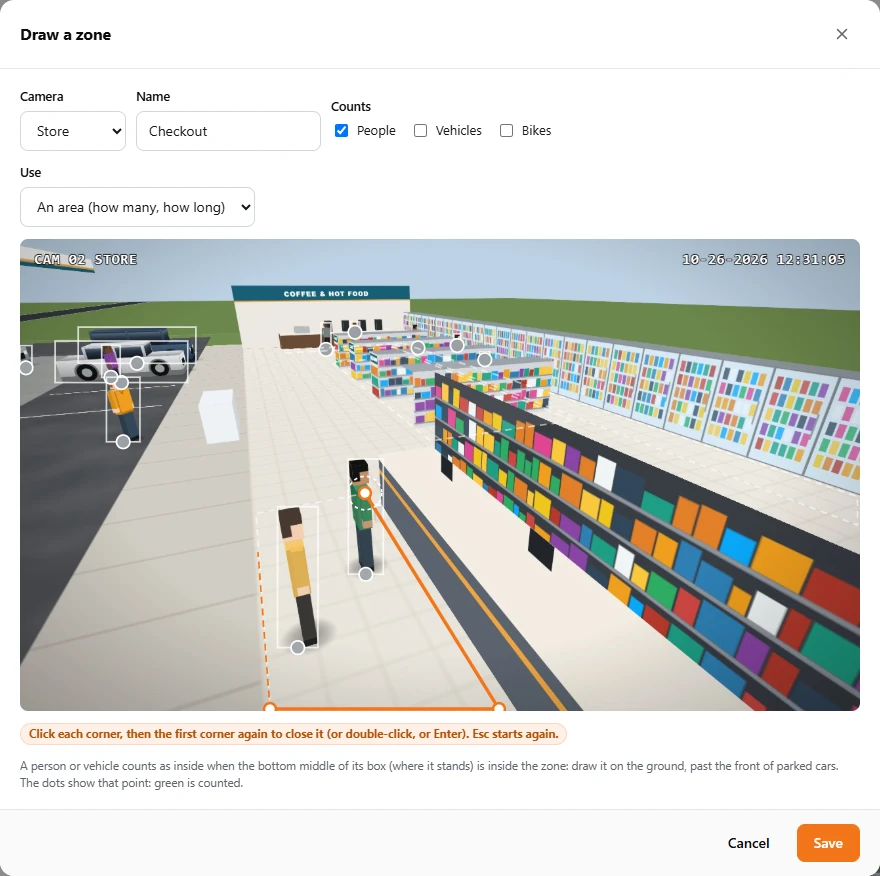
Click each corner on the picture, on the ground where people stand, and click the first corner again to close it. A line takes two clicks; its arrow points the way in.
Check who is counted
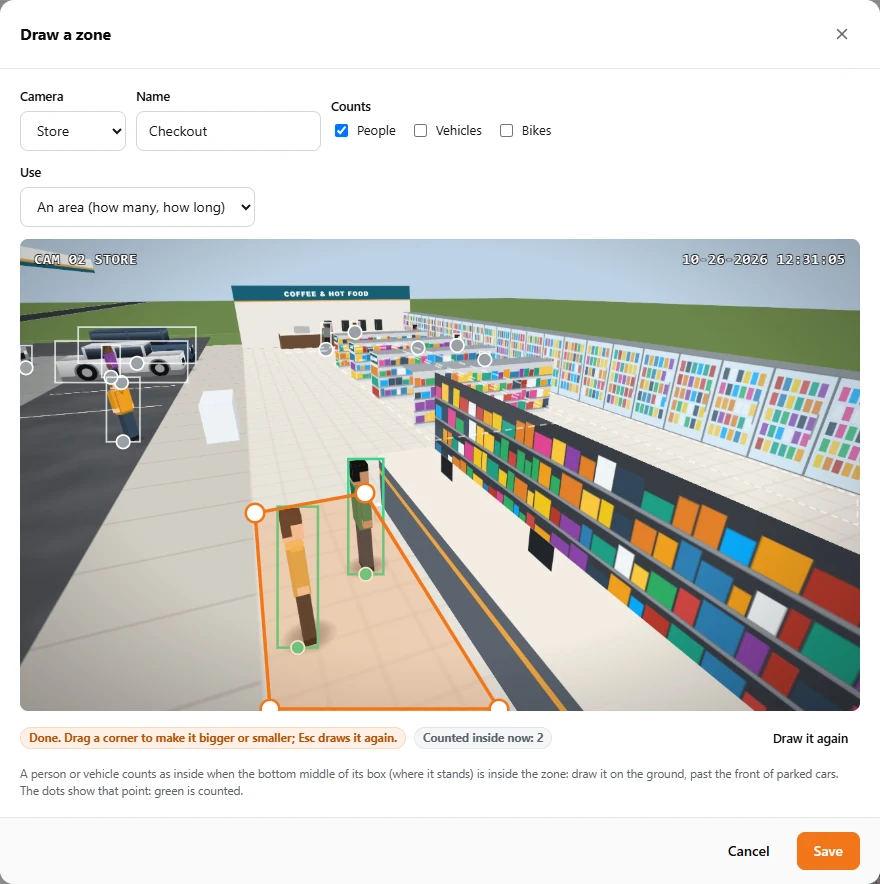
Each person or vehicle the AI sees has a box and a dot where it stands. A green dot is counted, a grey one is not. Counted inside now must match what you see. Drag a corner to make the zone bigger or smaller; Draw it again starts over. Click Save.
The checkout zone on the store camera: three corners drawn, the fourth on its way.Done: Counted inside now: 2, the two customers at the checkout.
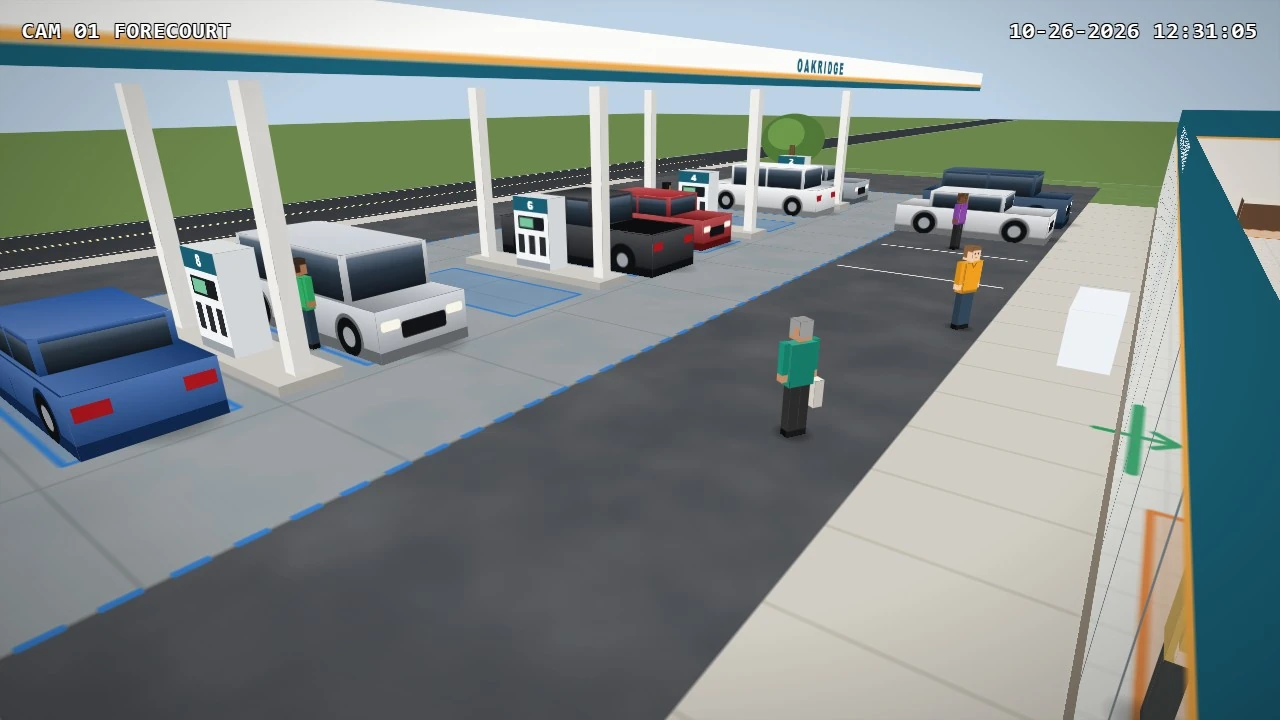
Draw it on the ground, past where things standA zone for parked cars must reach past the cars' near side, under their wheels; a zone for a counter must cover the floor in front of it, not the counter top. A zone that stops short counts people and cars in and out all day.
The forecourt camera with its Insights zones: each pump's place (blue), drawn on the ground under the cars, and the line "From the pumps" across the walk to the store (green, its arrow toward the store).
One line for alerts and countingA line or area drawn in Settings › Analytics (Part 1) can count in Insights too: tick Count it in Insights too there. In Insights, Same shape as takes a Settings line or area's shape. The two stay the same shape: moved in one place, the other follows. Only an admin can move a shape that also alerts.
Stuck on a step?
iLink Professionals supports owners and installers. Call, or send us a message.